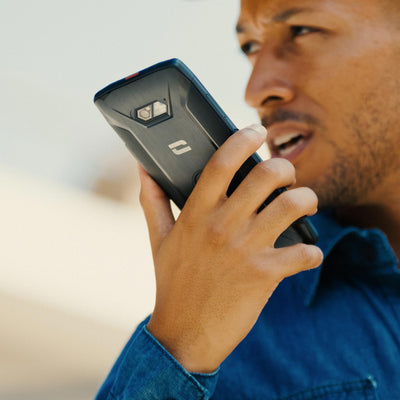
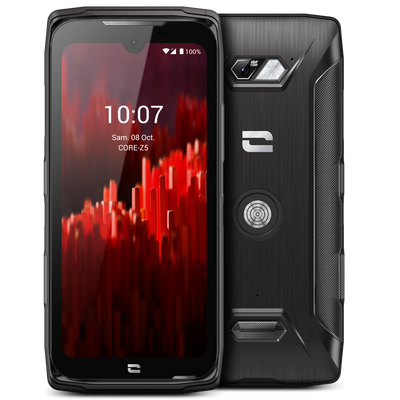

Are you changing phones or need to send it for repair? Learn how to back up data from your old phone to easily restore it on your new Crosscall device.
HOW TO BACK UP YOUR DATA VIA THE CLOUD?
Photos and videos:
1 . Open the Google Photos app
2. Sign in to your Google account
3. At the top of the screen, tap Menu
4. Select Settings > Backup and Sync
5. Enable the Backup and Sync option
For optimal quality, we recommend choosing the original quality backup option in Google Photos to preserve the flawless quality of images captured during your adventures.
Files and folders:
1. Open the Google Drive app
2. Tap Add
3. Tap Import
4. Specify the location of the files to import, then tap those files.
5. Check that your files have been successfully imported!
Data and settings:
1 . Open the Settings app
2. Tap System > Advanced Options > Backup
3. Tap Back Up Now
For a complete backup, enable the Google One Backup option to enjoy secure and extended storage.
WhatsApp data:
1. Open the WhatsApp app
2. Select the three dots at the top right
3. Select Settings > Chats > Chat Backup > Back Up
HOW TO BACK UP YOUR DATA ON YOUR COMPUTER?
Photos and videos:
1. Connect your device to the computer via your USB cable, your X-DOCK station, or X-CABLE
2. Select File Transfer
3. Find your photos and videos in Shared Internal Storage > DCIM
4. Transfer your data either to your computer or to your SD card
For Windows users, discover Quick Share to easily transfer your files between devices.
Files and folders:
1 . Connect your device to the computer via your USB cable, your X-DOCK station, or X-CABLE
2. Select File Transfer
3. Find your files in Shared Internal Storage
4. Transfer your data either to your computer or to your SD card
If you transfer your data to a Mac computer, you will need to download software like Android File Transfer.
HOW TO RESTORE YOUR DATA AND SETTINGS?
When you get your new Android phone:
1. Sign in to your Google account during setup.
2. Enable automatic restoration to recover your backed-up data.
For content transferred to a computer or SD card, simply drag the files into the corresponding folders on your smartphone.
On Mac, use Android File Transfer for the transfer.
For data backed up on Google Drive or Google Photos, follow the corresponding restoration steps on your new device.
Stay calm with your data well secured.