319,90€
Your basket is empty
Search on Crosscall
Search suggestion
Recommended for you
See all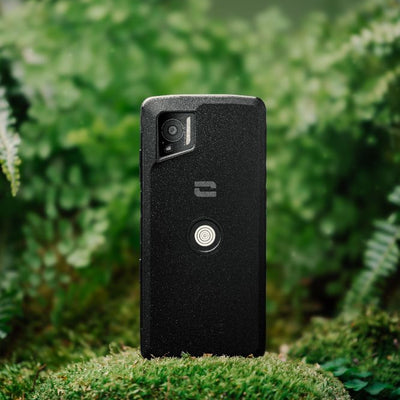
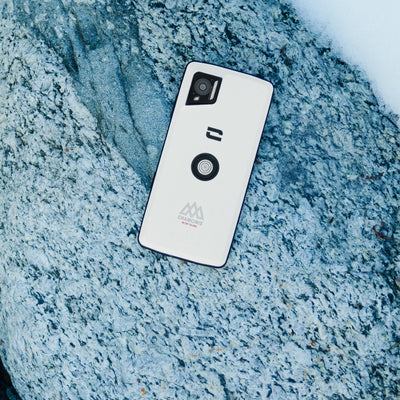
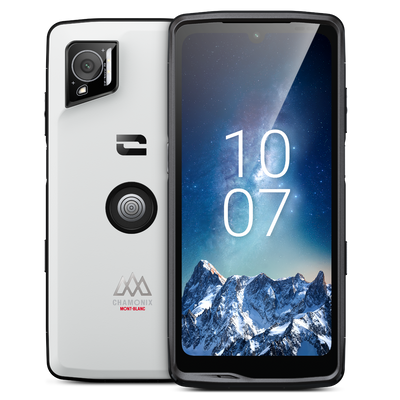
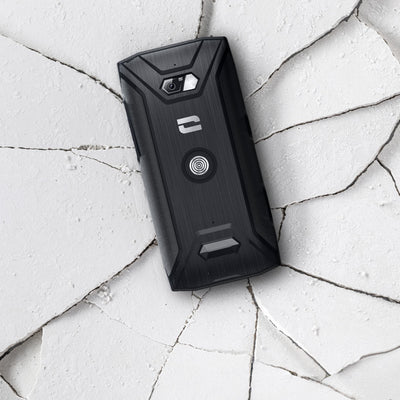
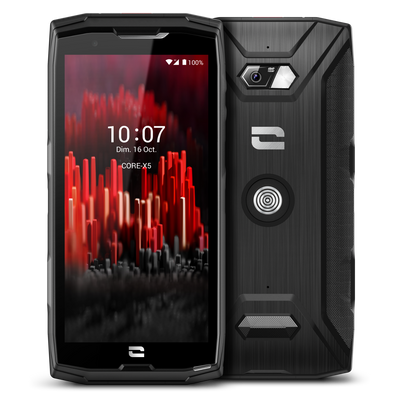

Top 4 features of rugged smartphones
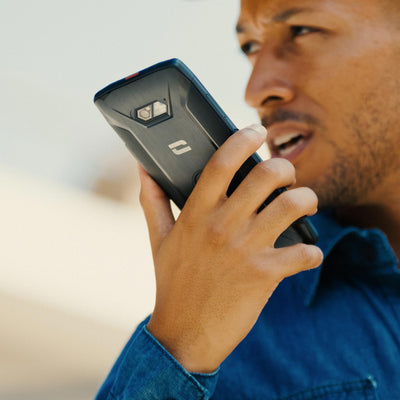
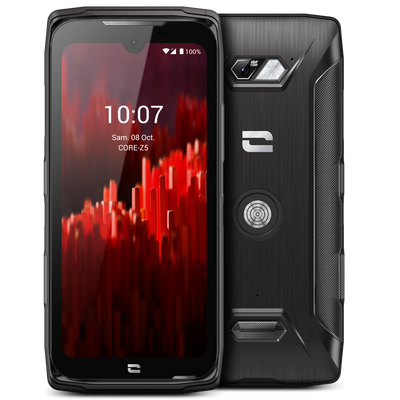
At Crosscall, we made a simple observation: as smartphones become thinner, more fragile, and more expensive, they move away from their primary function, communicate in all circumstances. In the field, in the cold, in the rain, amid noise or dust, it’s neither slimness nor gimmicky features that matter, but the ability to last and function, no matter what. The Rugged Smartphones are aimed at those for whom the phone is a true everyday tool: field professionals, security forces, craftsmen, technicians, but also outdoor enthusiasts and extreme sports lovers operating in demanding environments. These rugged smartphones are therefore specifically designed based on their users' expectations and needs, which for many can be summed up in a few words: reliability durability and ease of use. Here are the four essential features that define what a true Rugged Smartphone is in 2026. 1) Resistance to repeated drops and IP68 / IP69K waterproofing Resistance: Resistance to repeated drops is the essential prerequisite of a rugged smartphone, a rugged smartphone. That is why all our ultra-resistant devices exceed the requirements of the MIL-STD 810, based on military standards, which assesses resistance to extreme conditions: high or low temperatures, humidity, thermal and mechanical shocks. Waterproofing: Waterproofing is just as crucial. A rugged smartphone must not only withstand rain but also prolonged and deep immersion in various types of liquids (saltwater, chlorinated water, oils, fuels), not to mention dust. It is under these conditions that our rugged smartphones earn the IP68. Some of our rugged smartphones go even further with an IP69K. They remain fully operational even under high-pressure sprays, ideal for cleaning with a high-pressure washer in the most dirty environments. The real Crosscall difference lies in our testing methods. The resistance and waterproofing of our smartphones are proven in our own laboratory, the X-LAB, through combined and repeated tests. This approach ensures that our smartphones remain waterproof and functional over time, even after repeated drops. 2) Ultra-long battery life and durability over time A smartphone that doesn't last the day is not a reliable tool. A smartphone whose performance drops after a few months isn't either. That is why “rugged smartphones” must be equipped with high-capacity batteries, combined with intelligent energy consumption management. The goal is clear: guarantee a long battery life, suited for long days in the field, far from a power outlet. But beyond autonomy, the rugged smartphone can demonstrate exceptional endurance by maintaining a high level of performance over time, even after many charge cycles. It is this durability logic that guides the design of our rugged smartphones and allows us to offer a 5-year manufacturer warranty, battery included. 3) Field features: prioritize theuses reals A rugged smartphone is not designed to be used in ideal conditions. It must remain operational with gloves, in the rain, on the move, sometimes in emergencies. That is why we design our rugged smartphones to be as ergonomic as possible in the field : programmable physical buttons easily accessible without taking eyes off the action and screens usable even when wet. These design choices, often absent from consumer smartphones, are nevertheless decisive in a professional context. Rugged smartphones are also compatible with essential business applications, such as Push-To-Talk which can replace a radio or the Lone Worker Protection (PTI), meeting the security requirements of many sectors. 4) Connectivity and reliability: communicate everywhere, especially when it counts In the field, being reachable is not enough. You have to be understood, clearly and immediately. Rugged smartphones are designed to offer excellent network grip, in 4G and 5G networks , as well as advanced compatibility with Wi-Fi 6, public and private. They thus meet the requirements of PMR (Private Mobile Radio) environments and the challenges of critical and emergency communications. The acoustic chain is also given special attention in rugged smartphones: high-performance microphones, powerful speakers over 100db and noise reduction by artificial intelligence. This demand for reliability explains why our rugged smartphones are now used by players for whom failure is not an option: law enforcement army rescue services but also many field professionals. And why not for you too? Discover our rugged smartphones Discover Discover

Crosscall and NEO 2: at the heart of the transformation of internal security missions
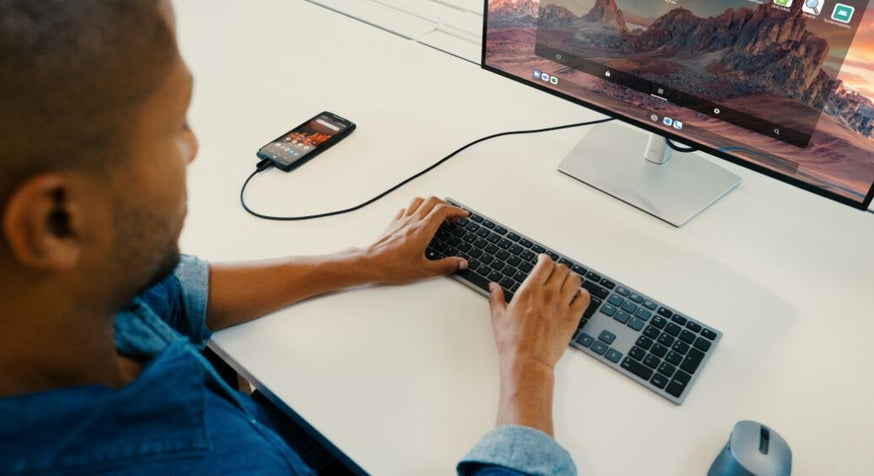
Launched in 2021, the NEO 2 program marks a historic turning point in the modernization of French security forces. On the occasion of Milipol 2025, Marine Pagnon, Head of institutional relations and partnerships at Crosscall, reviews the outcome of 4 years of strategic collaboration with law enforcement and reveals to us its vision for tomorrow's critical communications. NEO 2 represents a major technological ambition in the Security sector public. How was this project born and how Crosscall has it been able to meet these challenges? Marine Pagnon: The NEO 2 program is part of a very specific French philosophy of public security. Nour model is based on the presence of officers in plain clothes or uniform directly in contact with the population, ensure local security, deter and provide assistance. But this field presence requires being increasingly effective and versatile in security, control, andintervention ofergency. The Agence du Numérique des Forces de Security Intérieure (ANFSI) therefore aimed with NEO 2 to equip all officers with a unique smartphone, allowing them to strengthen their mobility and successfully carry out a greater part of their missions directly in the field. Let's take a concrete example: previously, during an identity check, if the officer needed to verify information about an individual, they had to take them to the station, perform the verification, etc.. In terms of operational efficiency, a lot of time was lost. With NEO 2, the officer accesses police files directly from their smartphone, can perform checks on the move, and make appropriate decisions immediately. Crosscall has addressed these challenges by relying on what defines our DNA: a smartphone obviously resistant to the most extreme conditions and equipped with extended battery life. But we went further. NEO 2 has become a tool that perfectly integrates into all field uses: from public security missions to road checks with motorcyclists, controls at the borders to the most delicate missions carried out by elite units. It is this versatility that makes all the difference. What concrete evidence of operational effectiveness have you observed in the field? M.P.: The most striking figure in my opinion is a breakage rate below 1% across the entire fleet. Considering the number of daily interventions, the harshness of the missions, and the intense mobilization of forces every day for securing major events sports such as the Rugby and Football World Cups, or the Olympic Games, it is a true feat. Another indicator of success: the initial contract is extended until 2029, well beyond the initially planned duration. This guarantees a much longer usage duration than originally expected, demonstrating the reliability of our equipment over time. But what may be even more revealing is the increasingly versatile use of smartphones thanks to our entire accessory ecosystem. The X-COMM, for example, was specifically developed to replace the traditional lapel microphone. In noisy environments, it greatly facilitates radio communications while offering ergonomics that agents are accustomed to. The X-COMMAND allows motorcyclists to control their communications directly from the handlebar, without compromising their safety during road checks, and offers the necessary discretion to agents during operationss of surveillance. How do you explain this success? M.P. : I would say it rests on two fundamental pillars. The first is that the product has become much more than a smartphone. It is a true development platform that allows meeting concrete needs and uses evolving. There was real research and development work carried out in collaboration with the Police and the Ggendarmerie Nrational to achieve a product modular that meets to the maximum their operational needs. The second pillar is our approach to close collaboration. Crosscall is a human-scale structure, which gives us flexibility and agility that larger organizations do not necessarily have giants of the sector. We have dedicated teams that provide support to ANFSI for all development aspects on- custom. This proximity allows us to react quickly, to co-build solutions and to ensure perfect operability with internal security challenges, particularly regarding the protection of sensitive data. Speaking of proximity, this collaboration was also an opportunity to deploy cutting-edge innovations, especially during the Paris 2024 Olympic Games. M.P. : Absolutely. The Othem OParis Olympics represented an exceptional public security setup, with forces deployed in very high mobility across all Olympic sites and throughout the Paris region. This event was an opportunity for a full-scale test of the STORM critical communication network on pSeveral thousand terminals. STORM is the program aimed at replacing conventional radios with 4G communications on smartphones. As part of the preparation for this major event, we have observed that were missing audio accessories designed to facilitate radio use. In noisy environments, having a dedicated accessory makes perfect sense to streamline communications. This is how the X-COM was bornM, which we have developed entirely custom. It is a rather unique product on the market: both Bluetooth and wired, rugged, ergonomic to meet the operational requirements of the forces field. What is these large-scale tests foretellsnt for the future of security forces communications? M.P. This opens the way to even greater modularity. Developments like N are already emergingEO DK with biometric control, which is fully compatible with terminals Crosscall. This will add another layer of functionality in the field. But the latest major innovation developed by Crosscall, this is the new version of X-SPACE. This solution allows the smartphone to be transformed into a true desktop computer, now with broadcasting on two 4K screens. The agent simply plugs in their smartphone at thescreen, and it has a complete workstation. A single terminal for field missions and office work. The implications are considerable: substantial savings on the IT fleet, greatly simplified fleet management, and an impact lower environmental impact since the number of necessary devices is drastically reduced. It is estimated that one smartphone can replace up to 5 different terminals. Moreover, there is the issue of interoperability. With the large-scale deployment of STORM across the entire smartphone fleet of security forces, we are moving towards a convergence of communication tools emergency, with a gradual disappearance of radio in favor of the smartphone. Finally, the advent of artificial intelligence suggests1st a new development still new to improve team efficiency and collaboration, even though everything is still to be imagined on this point. How Crosscall is preparing to support this evolution? M.P. : It must be understood that the NEO 2 program is planned until 2029. This means we will be involved in this program for nearly 10 years. In 10 years, we will have the opportunity to support the deep transformation of the police and gendarmerie profession. And I think our strength is precisely this ability to remain agile while being reliable in the long term. We are not just a hardware supplier: we are a partner who co-built with our clients ofsolutions forthe future and sustainable. This philosophy takes on its full meaning in a program as strategic as NEO 2. And we are all the more proud of us to be able to do it to alongside women and men who ensure our security every day.

Experience a unique adventure under the stars with Chamonix-Mont-Blanc
On the occasion of the launch of the STELLAR-X5s Chamonix-Mont-Blanc edition, Crosscall partners with the Valley Tourism Office to offer you a unique experience: the STELLAR CAMP. An exceptional stay for two people, designed for those who love to reconnect with nature, observe, and fully live in the moment. Led by the Chamonix Guides Company, this nighttime adventure takes you into the heart of a demanding environment, but accessible to all mountain and outdoor lovers. On the program: Nighttime ascent on touring skis or snowshoes, by headlamp light. Setting up camp in an exceptional natural setting. Night under the stars, rocked by the silence and purity of the mountain. Wake up facing Mont Blanc, as the first rays of the sun light up the valley. Guided return, in a friendly and shared atmosphere. A rare moment to recharge, share, and experience the mountain differently without seeking performance, but with a spirit of gentle adventure. How to participate in the STELLAR CAMP? The contest is open to everyone. To try your luck: Visit the dedicated page. Fill out the registration form before the indicated deadline. Increase your chances by referring your friends and family: every invitation counts! To win: A unique adventure for two people in the heart of the Chamonix-Mont-Blanc Valley. Exclusive Chamonix-Mont-Blanc down jackets. And, for the most committed (10 referrals or more), the new Crosscall STELLAR-X5s Chamonix-Mont-Blanc Edition smartphone. 👉🏻 Register now for the STELLAR CAMP and try to live this unforgettable adventure with Crosscall and Chamonix-Mont-Blanc. A responsible adventure The STELLAR CAMP perfectly embodies the shared values of Crosscall and Chamonix: Respect for the environment: participants reach the valley by train or bus to limit their carbon footprint. Professional guidance: the experience is led by experts from the Compagnie des Guides, ensuring authentic and safe mountaineering. Connection to nature: more than a performance, it is an invitation to feel the vastness of the landscapes and the beauty of silence.

The Crosscall Sailing Team Opens a New Chapter
AN AMBITIOUS PROJECT All united under the Crosscall Sailing Team banner Created in 2019 through the joint initiative of Aurélien Ducroz, double Freeride Ski World Champion and Class40 World Champion, and Cyril Vidal, President and founder of Crosscall, a French brand of more durable smartphones and expert in critical communication solutions, the Crosscall Sailing Team had its first three-season campaign, concluding in 2022 with participation in the legendary Route du Rhum. Eager to continue their shared ocean adventure, they decided to strengthen their partnership and bring in new co-partners through 2025. The goal: to keep optimizing the performance of the Class40 Crosscall prototype and share new human and sporting adventures during the biggest offshore races in the category. A LIFT V2 PROTOTYPE COMBINING INNOVATION AND DURABILITY The Class40 Crosscall was designed by the Marc Lombard firm to be both reliable and high-performing thanks to innovative lines offering new sailing capabilities, onboard electronics previously reserved for higher category boats, and design and material choices made with durability in mind.“Our Lift V2 prototype launched in 2021 is constantly evolving. Among other things, we have refined its lines to take advantage of the latest innovations in design and water glide. In recent years, we have sought to optimize every detail. This time, we are starting with a proven boat that we fully master. The goal is to build on this experience and approach the Transat Café L’Or with confidence.” AURÉLIEN DUCROZ Freeride Ski World ChampionClass40 World ChampionSkipper of the Crosscall Sailing Team FEATURES OF THE CLASS40 CROSSCALL Concave bow - spatula-shaped hull A constantly evolving prototype, the Lift V2 Crosscall paved the way in 2023 with a new concave bow shape instead of a rounded one, which helps relieve the boat when running downwind in the breeze and assists it in climbing waves it catches, rather than crashing into them and slowing down. This innovation helps ease the power generated by the “scow” spatula-shaped hull (widened front part). A solid structure The structure of the Class40 Crosscall is solid, it has shown no defects since its launch in 2020, which is a very important sign of reliability. Fast upwind and reaching The Lift V2 designed by Aurélien Ducroz and the Lombard firm owes its success notably to its speed reaching and upwind. The Class40 Crosscall has all the tools to compete with the best boats following the performance optimization work carried out each year. A boat Aurélien knows by heart After five years of sailing, the Class40 Crosscall holds no secrets for Aurélien who is comfortable with it and knows it by heart. Immersive live The Class40 Crosscall will be the first Class40 to offer immersive live experiences during which sailing enthusiasts and fans can interact with Aurélien and his co-skipper during races. It is from their Crosscall smartphone that they will be able to respond live and share life aboard a racing sailboat. Aurélien chooses Jonathan Chodkiewiez as co-skipper for the TRANSAT CAFÉ L’OR Jonathan Chodkiewiez, Class40 Crosscall preparer since 2022, will stand alongside Aurélien Ducroz as co-skipper for this 2025 double-handed racing season. Already reunited and victorious at the last Class40 World Championship in La Rochelle, they form a close and efficient duo, with notably two podiums at the Middle Sea Race and the Massilia Cup Offshore in 2024, then two wins in 2025 at the Porquerolles’ Race and the Massilia Cup Offshore. This complementary duo will be eager to leverage their shared experience to perform at the Transat Café L’Or. “Jonathan is a reliable crew member who knows the boat inside out. We have sailed together for several seasons with great podium finishes to our name. This continuity allows us to approach each race with confidence. Jonathan’s commitment, his perfect knowledge of the boat, and our chemistry at sea make him an ideal teammate." AURÉLIEN DUCROZ Crosscall Sailing Team Skipper THE 2024-2025 CLASS40 CROSSCALL RECORD 2025 1st Massilia Cup Offshore1st Porquerolles’ Race5th CIC Med Channel Race 2024 3rd Middle Sea Race6th Med Max3rd Massilia Cup OffshoreThe Transat CIC: withdrawal (Day 4, stay damage) PARTNERS ON BOARD Navigating towards excellence is a team effort where each partner contributes their part and brings their expertise to the success of the Crosscall Sailing Team.
Rugged Phone for the Mountains: The Essential Companion for Outdoor Adventurers
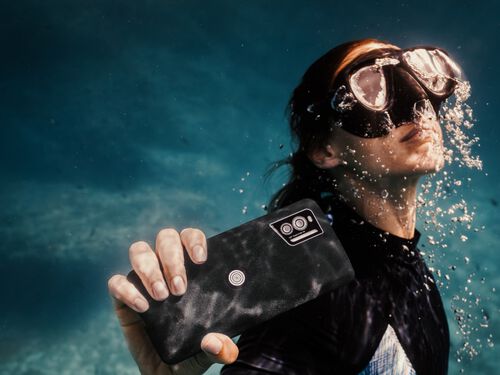
Why choose a rugged phone for the mountains? The mountains are an adventure terrain as fascinating as it is demanding. Between sudden weather changes, rough terrain, and isolation, every high-altitude excursion carries risks. A rugged phone for the mountains is not just an accessory, but a true safety tool. Whether you are an occasional hiker or an experienced explorer, nature gives no favors. It only takes one misstep, unpredictable weather, or a dead battery to turn a beautiful day into a real challenge. Good equipment makes all the difference, and among the essentials, a reliable all-terrain smartphone is crucial. Crosscall, a French outdoor smartphone brand, offers two models suited for adventurers: the STELLAR-X5, ideal for hiking and photography, and the STELLAR-M6, designed for explorers seeking durability.
Crosscall extends the duration of OS and security updates
Durable, repairable, and guaranteed for 5 years – battery included* – Crosscall smartphones are designed to last. Because a durable device deserves proper support, we are extending, starting today and at no extra cost, the security maintenance period as well as the number of OS updates.One step closer to more responsible tech. Our new commitments Model OS updates(subject to compatibility) Security maintenance(Minimum commitment) STELLAR-X5 Up to Android 18 Until December 2031 STELLAR-M6 Up to Android 20 Until December 2032 STELLAR-M6E Up to Android 20*2 Until December 2032 CORE-Z5 Up to Android 16*3 Until December 2030 CORE-X5 Up to Android 15 Until December 2030 CORE-M5 (6/64) Up to Android 16 Until December 2030 CORE-T5 Up to Android 15 Until December 2030 For more information, visit the Crosscall/Security page. *During the warranty period, CROSSCALL covers the replacement of a defective battery if the following two cumulative conditions are met: the battery capacity is less than or equal to 70% and the number of full charge cycles is less than or equal to 850.*2 Subject to compatibility with future Android versions*3 CORE-Z5 4/64: subject to a compatibility evaluation with future Android versions
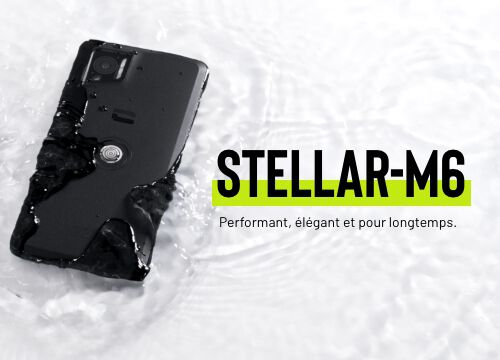
Launch of the STELLAR-M6: Powerful, Stylish, and Built to Last
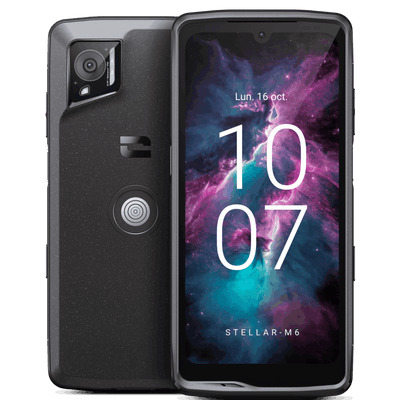
Available since November 7, the STELLAR-M6 marks a highly anticipated evolution in the Crosscall range. A 5G smartphone combining ruggedness and long battery life, the STELLAR-M6 features a sleek, particularly elegant design. Powerful by nature, the STELLAR-M6 features many latest-generation technologies for a maximum user experience and enhanced security. Responsible by conviction, Crosscall’s latest model was designed to reduce its ecological footprint with a major argument: a 5-year warranty including its battery*. This encourages prolonged use while promoting repairability thanks to many design details like a screwed rather than glued chassis, resulting in a repairability score of 9.3. In terms of durability, this makes the STELLAR-M6 is even more rugged against the inevitable shocks and drops of daily life. Since the STELLAR-M6 aims high, it is well suited for frontline workers, hyperconnected outdoor enthusiasts, demanding DIY fans, as well as business leaders who need a smartphone that is as powerful and durable as it is elegant in meetings. They all share the same demand for connectivity, another strong point of the STELLAR-M6. A new asset is its ability to run many complex business applications, those used by companies and professionals. Because Crosscall believes a smartphone must primarily meet practical needs, the STELLAR-M6 is also available in a streamlined, even more affordable version... the STELLAR-M6e. Already convinced? Order the new STELLAR-M6 now.

CROSSCALL RENEWS ITS GOLD BADGE IN THE "ANDROID ENTERPRISE PARTNER" PROGRAM
For the second consecutive year, Crosscall has received the "gold" badge from the Android Enterprise Partner Program. This distinction reaffirms the French manufacturer's commitment to providing efficient, secure, and durable solutions and products that meet the mobility needs of professionals. The Android Enterprise Partner program was established to support all companies wishing to equip themselves with mobile solutions and fleets. They can easily find partners who have not only successfully completed the commercial and technical training of Android Enterprise but have also demonstrated their ability to deploy technical solutions and specific product features, provide quality customer service, and succeed in the market. Crosscall equips many professionals across all sectors who praise the lifespan combined with performance and robustness of its products, such as SNCF agents, Leroy Merlin employees, and law enforcement officers from the National Police and Gendarmerie. These advantages have allowed the brand to become a reference in the B2B market and receive the Gold status in the new Android Enterprise program. Crosscall is the only French manufacturer to receive this distinction, which highlights the work done by the teams to meet Android Enterprise requirements and thus support professionals in their digital transformation. This status was awarded to Crosscall based on several criteria: - Expertise in the Android Enterprise environment: Crosscall teams have acquired in-depth knowledge of the Android Enterprise universe and regularly attend training to offer innovative solutions that perfectly meet companies' needs. - Product excellence: Crosscall devices are AER (Android Enterprise Recommended) certified, a certification guaranteeing the ease of deploying mobiles in companies as well as the security and durability of the devices. Crosscall's 5th generation devices come with a 5-year warranty and benefit from at least one OS upgrade and security patch updates for 5 years. The STELLAR-X5 benefits from 3 OS upgrades, allowing companies to have equipment with an extended lifespan and make a long-term investment. - Market success: with currently more than 100,000 Android Enterprise enrolled devices deployed in companies, Crosscall has been distinguished with the "Gold" badge of the Android Enterprise Partner program.

The Barcode Warehouse and Crosscall work together to provide British businesses and public sector organizations with robust and critical solutions designed for all environments. Crosscall designs and manufactures waterproof, rugged, and durable mobile phones and smartphones. Founded in 2009, the company quickly earned a reputation for creating devices capable of withstanding the toughest conditions. The range of smartphones and tablets is specially designed to endure the abuse of harsh and unpredictable environments. From freezing temperatures to scorching heat, dust, water, and drops, these devices are built to resist and keep functioning, thus minimizing downtime and maximizing productivity. Crosscall has a strong presence in France and is expanding its reach to other European countries. Crosscall currently supplies over 300,000 devices to clients such as Leroy Merlin, the European leader in home improvement retail, the SNCF, the French national railway company, and the French National Police. By becoming a reseller, The Barcode Warehouse expands Crosscall’s reach to British organizations that need mobile technology that is both rugged and durable. “After exploring Crosscall’s diverse product range designed to assist end users in their work, we are excited about their potential in the UK market. At a time when smart devices are becoming increasingly powerful, adding Crosscall to our portfolio was an obvious decision.” William Bevis, Partner Development Lead & Technical Trainer, The Barcode Warehouse. This offering builds on the 35 years of expertise of The Barcode Warehouse as a solutions integrator specializing in barcode technology, RFID, labeling, and enterprise mobility solutions, combined with Crosscall’s rugged and cutting-edge hardware, to equip businesses with the tools needed to streamline their operations and excel in demanding environments, from warehousing to manufacturing, field services, and public safety. “Crosscall is delighted about this strategic partnership with The Barcode Warehouse, a major player in enterprise mobility and managed services in the UK. By combining our solutions with their expertise and services, we offer an attractive proposition for organizations across various sectors. With our experience in other markets, we understand that customers seek added value and increased durability for their mobile devices, and the UK and Ireland are no exception. Our 5-year warranty and range of enterprise accessories meet these customer demands, and we are excited to introduce them to the UK and Ireland in collaboration with The Barcode Warehouse.” Denis Thayanithy, International Sales Director at Crosscall. Crosscall is committed to promoting a more sustainable telephony sector. By partnering with suppliers to ensure ethical production practices and educating customers on responsible consumption, Crosscall aims to minimize the environmental impact of its products. By designing rugged and durable devices that are easy to repair and recycle, the company seeks to reduce waste and extend product lifespans. The company’s commitment to sustainability is also demonstrated by its take-back programs, which refurbish end-of-life devices to extend their lifespan.
Smartphones: The New Challenges for Frontline Workers
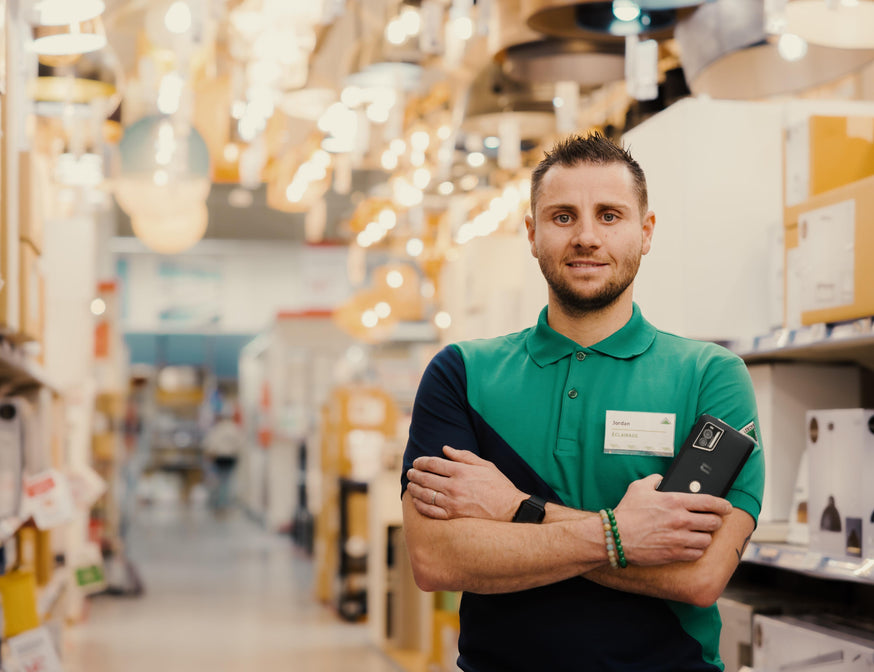
Millions of frontline workers worldwide work daily in direct contact with customers in an increasingly digital environment. For them, this underlying trend has a major impact: their ability to quickly access information as well as to share it as soon as possible. At the heart of this challenge is the smartphone they use and cost optimization. Retail salespeople, craftsmen working at private homes, maintenance agents in industry, delivery drivers, municipal police officers on the streets, cleaning staff, or home care aides... more than just a name, frontline workers are everywhere. Their work is essential with continuous streams of information. One thing is certain: digitalization has profoundly transformed their activity. First by making it easier, by combining many tools in a smartphone such as shared calendars, intervention reports, and of course by being able to communicate simply everywhere. While this trend is an advantage, it has also revealed a reality. Very often, in fact, the smartphone used is not suited to the actual usage conditions. The consequence: irregular availability of equipment, breakages, uncompleted tasks therefore not billed, without underestimating the impact of frustrations for customers, users, and those handling complaints and after-sales service. For Crosscall, this comprehensive approach covering the entire usage period of equipment is central. The goal is to optimize the cost of this equipment as much as possible throughout its entire usage cycle. COMPARE WARRANTIES AND THEIR DURATION Worldwide, most countries require electronic equipment manufacturers to provide a minimum two-year warranty. However, studies show that users keep their devices longer. As a result, part of the usage period will no longer be covered by the warranty in case of failure. This will therefore increase... the cost of ownership. By offering a 5-year warranty on its products, and especially by including the battery in this coverage, Crosscall innovates as it is the only manufacturer on the market to commit to such a duration. DAILY DURABILITY When working face-to-face with customers, outdoors, in a store, or at home, shocks and drops are inevitable. The equipment must meet this specification, like the STELLAR-X5, which is used notably by SNCF. Durability relies heavily on design details that often go unnoticed, such as a screwed intermediate case instead of a glued one. At purchase? Visually no difference. Over time, however, the advantage is major with greater resistance to external damage, shocks, and dust infiltration. "A Crosscall smartphone can replace up to 5 devices" STUDY THE NUMBER OF DEVICES THE SMARTPHONE CAN REPLACE The best purchase in terms of savings is the one you don’t make. The lightest equipment is the one you don’t carry. From these two common-sense remarks, the French brand developed an offer, Crosscall-In-One. The approach? Streamline the number of devices by simplifying daily use. A Crosscall device can thus replace a walkie-talkie, a barcode scanner, or even a PC, with its X-SPACE interface. CHOOSE TECHNOLOGIES SUITED TO USES Wi-Fi 5 or 6/6E, 4 or 5G, VoWi-Fi, Bluetooth 5.0 or 5.2, MIMO, SISO... it's hard to make the right choice. Yet, every decision impacts the mission of a frontline worker. For example, Wi-Fi 5 compared to Wi-Fi 6/6E. Wi-Fi 5 is more than enough for people mainly using cellular data. However, someone working in a warehouse covered by a modern private network will benefit from being equipped with Wi-Fi 6/6E with ultra-fast speeds. The strength of the Crosscall range? Checking many boxes for frontline workers while always focusing on adapting products to field uses, not the other way around. CONSIDER THE USER EXPERIENCE One of the questions to ask early on is how the equipment selected for a fleet will be perceived by its future user. If the first reaction is rejection, the investment is totally counterproductive. If, on the contrary, the user is involved very early, including from the design phase, it’s a win. This is how Crosscall won a major contract with Leroy Merlin, equipping 30,000 employees. IDENTIFY THE ESSENTIAL FEATURES What makes the difference with Crosscall is probably the small details, each thought out by the product teams. For frontline workers, they represent real assets daily. On the comfort side, leash loops allow carrying a smartphone around the neck. The ultra-hardened screen protector glass prevents scratches. The battery life is designed for worry-free use throughout the day. It is 25h48 for the CORE-M5 in 2G/3G communication. It’s no coincidence that Crosscall products are used by many firefighters or the BRI. CONSIDER THE PRICE OF ACCESSORIES When you say smartphone, you also say accessory ecosystem. This from two angles. The first is the range breadth allowing to meet multiple uses such as mounting on different supports, recharging one or more devices. Another possibility: reduce the equipment used by rationalizing their number like with an X-SCAN optical reader making a classic scanner unnecessary. The second angle becomes central: the price. And again, Crosscall products have two strong arguments, durability and reliability! Since they are robust by nature, they don’t need a case. This is an indirect saving with an immediate financial advantage.

Crosscall partners with BT to offer its range of rugged smartphones to British businesses
Crosscall, the leading European manufacturer of rugged smartphones for businesses, has announced a new collaboration with BT. As part of this agreement, Crosscall’s range of affordable, durable, and robust mobile devices will be available for the first time to UK businesses. Available to BT customers from September 30, Crosscall phones are uniquely designed with a focus on durability. Built to support users over the long term, all the brand’s smartphones and tablets come with a 5-year warranty, including issues related to the phone’s battery lifespan. Crosscall devices are also designed to be easy to repair, to extend their lifespan and reduce replacements. The brand is also committed to ensuring spare parts availability for 10 years. Crosscall’s latest innovative smartphone, the STELLAR-X5, contains 26% recycled materials. These ongoing eco-design efforts as part of a strong CSR policy earned the company a gold medal from Ecovadis, a globally recognized CSR rating organization. Crosscall ranks in the top 5% of companies with the best CSR performance among more than 130,000 companies evaluated. This accreditation also complements BT’s ambitious net-zero strategy. Through its collaboration with BT, Crosscall aims to provide exceptional service and robust technology to businesses operating in challenging environments in both the public and private sectors. Crosscall currently supplies over 300,000 devices to clients such as Leroy Merlin, Europe’s leading home improvement retailer, SNCF, the French national railway company, and the French national police. Sally Fuller from BT said: “As the first operator in the UK to sell Crosscall phones, this partnership offers a unique opportunity for BT customers to purchase market-leading rugged devices with extended warranties. Crosscall’s impressive sustainability credentials also build on our existing initiatives, which aim not only to reduce our own carbon emissions but also those of our customers and partners. Matthew Burchell from Crosscall said: “This collaboration with BT is a real opportunity for Crosscall to meet the needs of UK businesses and professionals seeking a more sustainable alternative in telephony. Our ambition is to replicate the successes achieved in Europe and become a UK leader in enterprise technology. Crosscall will be present at the Emergency Tech Show on September 18 and 19 in Birmingham to meet key players in public and private security and showcase its innovative communication solutions. About CrosscallCrosscall is a French manufacturer offering waterproof, rugged mobile phones with long battery life. Founded in 2009 by Cyril Vidal and based in Aix-en-Provence, the brand develops models suited to the harsh and unpredictable conditions faced by athletes and professionals in the field (water, rain, wind, humidity, dust, shocks...). Crosscall has sold over 4.5 million mobile devices in more than 20,000 retail outlets and generated revenue of 114 million euros. About BT GroupBT Group is the UK’s leading provider of fixed and mobile telecommunications and related secure digital products, solutions, and services. We also provide managed telecommunications, security, network, and IT infrastructure services to customers in 180 countries.The BT Group consists of three customer-focused units: Consumer serves individuals and families in the UK; Business covers enterprises and public services in the UK and abroad; Openreach is a wholly owned independent subsidiary that wholesales fixed access infrastructure services to its customers—over 700 communications providers in the UK.British Telecommunications plc is a wholly owned subsidiary of BT Group plc and encompasses virtually all of BT Group’s operations and assets. BT Group plc is listed on the London Stock Exchange.For more information, visit www.bt.com/about

Mâcon 2024: Addressing the Challenges of Firefighters
Crosscall will be present from September 25 to 28, 2024, at the 130th firefighters’ congress. For the French brand already equipping many SDIS in France, it’s an opportunity to share its security expertise serving the population while highlighting the performance of its offer. Interview with Denis Thayanithy, Chief Commercial Officer of Crosscall. The budget advantage of products less prone to breakage How do Crosscall products meet the operational needs of SDIS in France, and more broadly the civil security actors? "Today, professionals in this sector want products that are both financially accessible and resistant under extreme usage conditions. That’s exactly what we offer with robust smartphones and tablets that withstand shocks, drops, and liquids. Reliability is in Crosscall’s DNA. It has built the success of our brand, as shown by our 5-year warranty that also covers the battery. This means that by choosing Crosscall equipment, an SDIS will optimize its budget with gear they can keep longer, less prone to breakage, and more broadly protected against all risks related to daily interventions on any type of terrain. Over the months, this quickly adds up to thousands of euros." The user at the heart of Crosscall's approach What makes Crosscall's approach particularly appreciated, beyond the central focus on product durability? "We never forget that behind one of our devices, there are women and men whose job is to save lives. This represents a real responsibility for the Crosscall teams. That is why we invest time in human relationships. It allows us to build close ties, essential to provide solutions tailored to the specific needs of an SDIS. This is the whole point of choosing a French brand relying on a perfect network across the territory. In this strategic sector of civil security, we aim to develop real long-term partnerships. And it usually all starts with a meeting. It is thanks to this commitment on the ground that we now collaborate with many SDIS throughout France. Crosscall also participates in major projects like the Fenics project in close relation with SDIS 73, SDMIS, SDIS 74, and SDIS 13." Replace up to 5 existing devices How does Crosscall address the challenge of cost optimization through equipment rationalization? There are two ways to look at this issue. The first is to drastically reduce the number of new devices or slow down the replacement rate of those already in operation. For Crosscall, the answer comes from a study of usage to always optimize the available equipment. We invent increasingly versatile products. Thus, a Crosscall phone can replace up to 5 existing devices. For example, it can substitute for a walkie-talkie, a barcode scanner, or even replace a computer with a simple connection to a screen. For Crosscall tablets, the approach is the same. Our teams notably collaborated with an SDIS to implement a cardiovascular data collection solution during the medical care of victims. Thanks to this, professionals can share a complete report with their colleagues at SAMU in particular. We thus address a real interoperability challenge while contributing to the optimization of operating costs. Another very concrete example is our CORE-T5 tablet used as a training support.