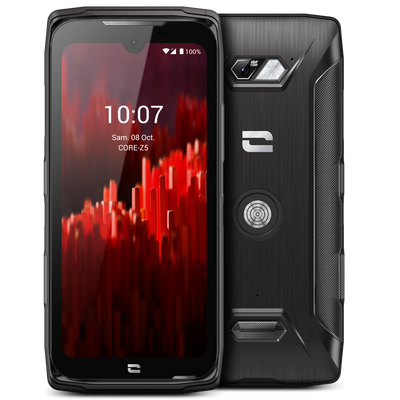

This tip* explains how to compress your contact list so you can then import it into your new CROSSCALL smartphone or export it from your old phone.
1. Go to the “Contacts” app on your Android smartphone.
2. Click on the “three vertical dots” at the top right.
3. Select “Import / Export.”
4. Choose the option you need between “Import from VCF file,” “Export to VCF file,” or “Share visible contacts,” which allows you to send your contacts directly via the app you want (Gmail, WhatsApp…).
CONTACT EXPORT
1. After clicking on “Export to VCF file,” press “OK” to the prompt, and a .vcf file will be created at the root of your phone. Here, it is the file “00001.vcf.”
2. Then import this file onto your new CROSSCALL smartphone by following the steps explained above, and you’re done!
CONTACT IMPORT
After clicking on “Import from VCF file,” you will have the choice to save your contacts on your “Phone” or your Gmail account. The second option will allow you to access your contacts anywhere.
*This tip was made with the CROSSCALL TREKKER-X3.