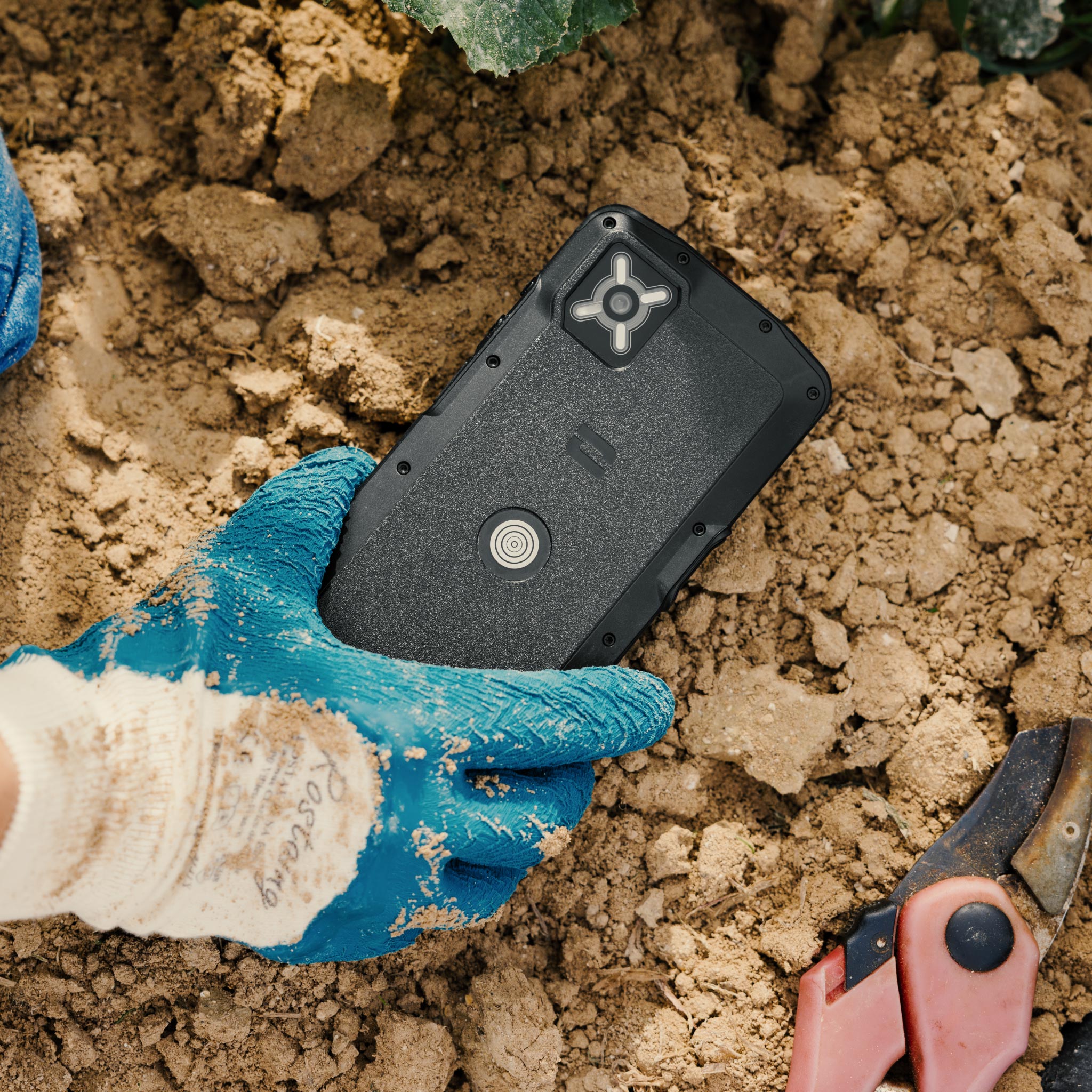
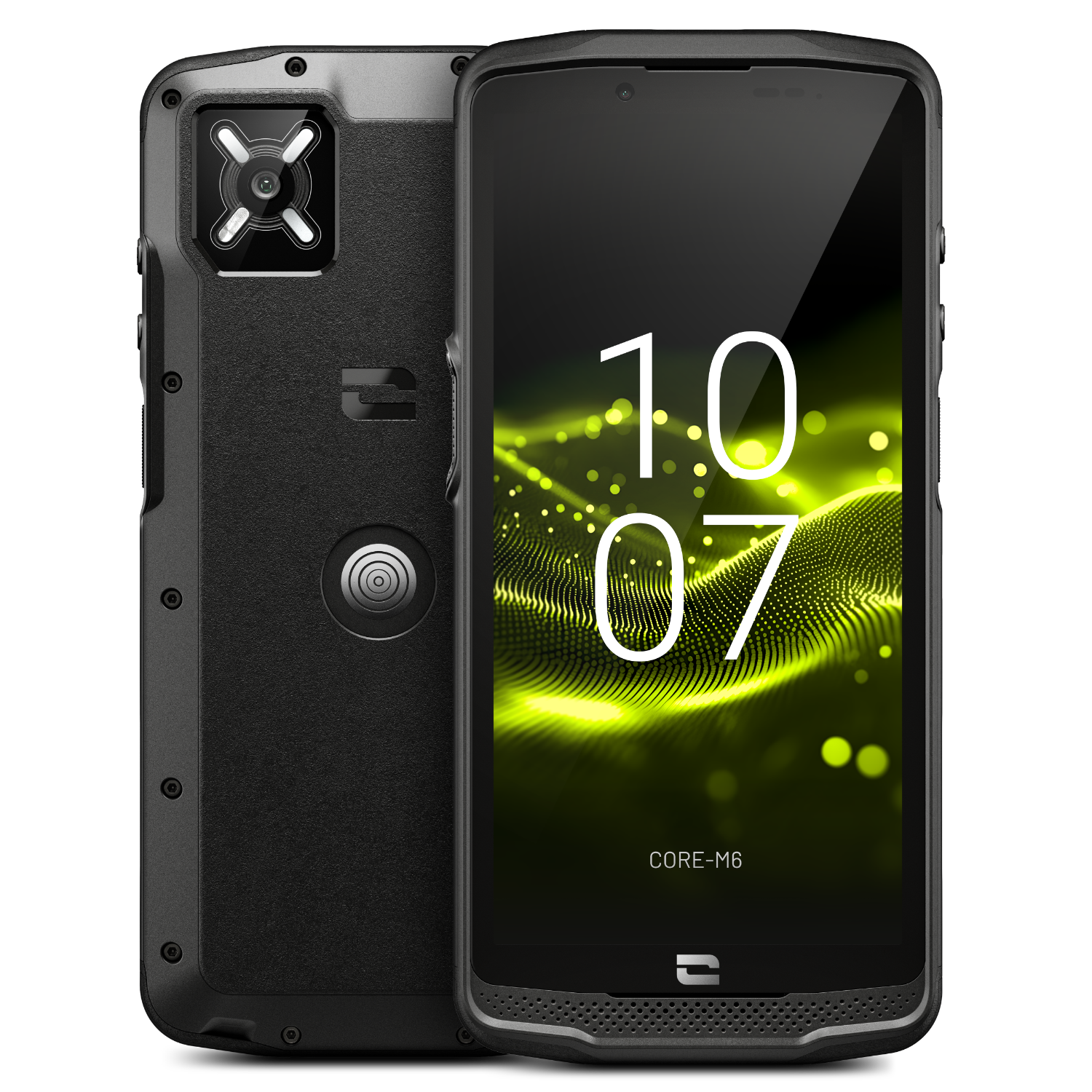
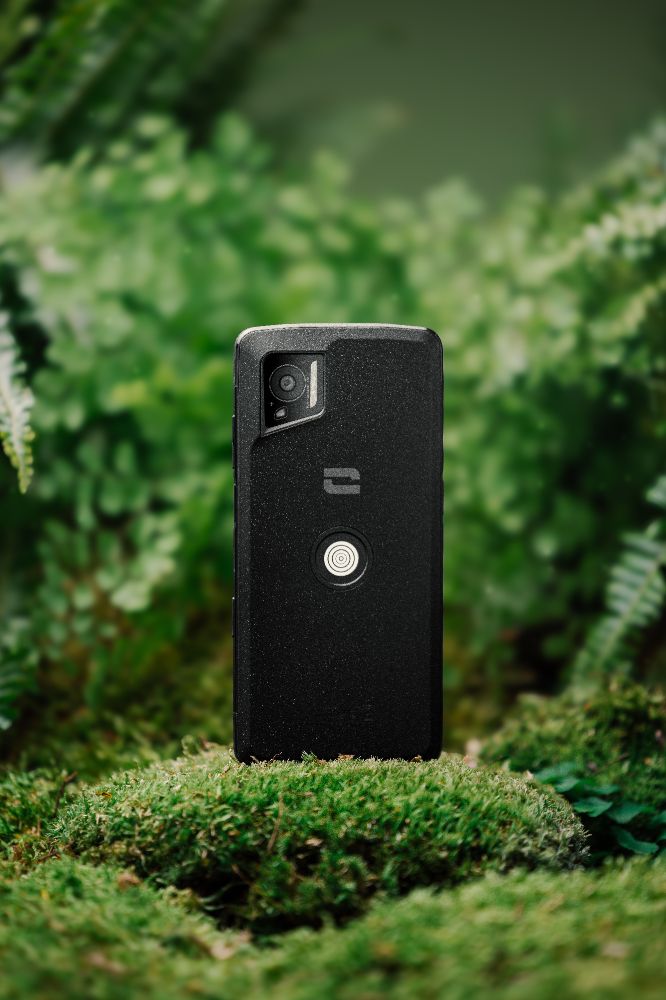
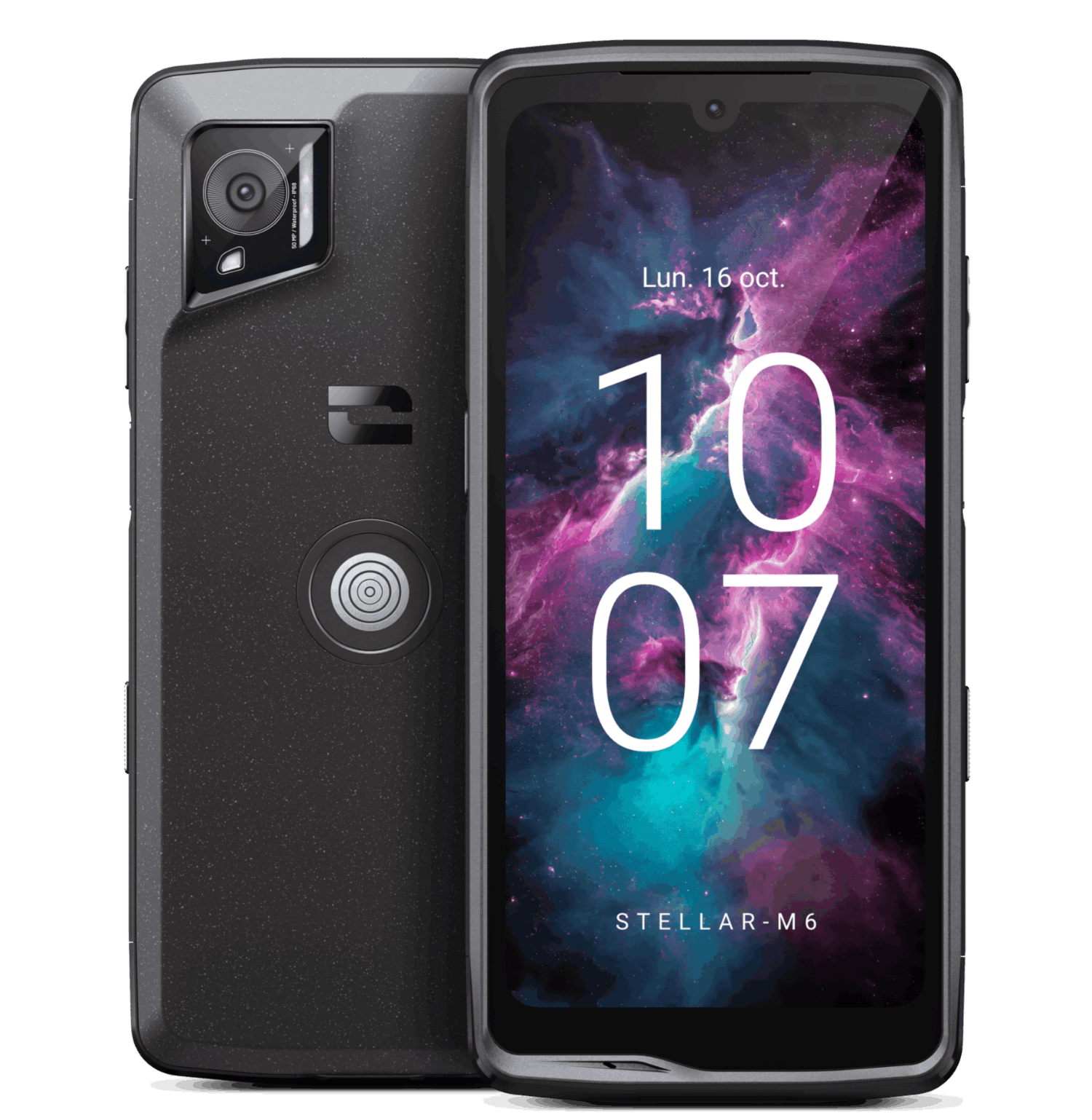
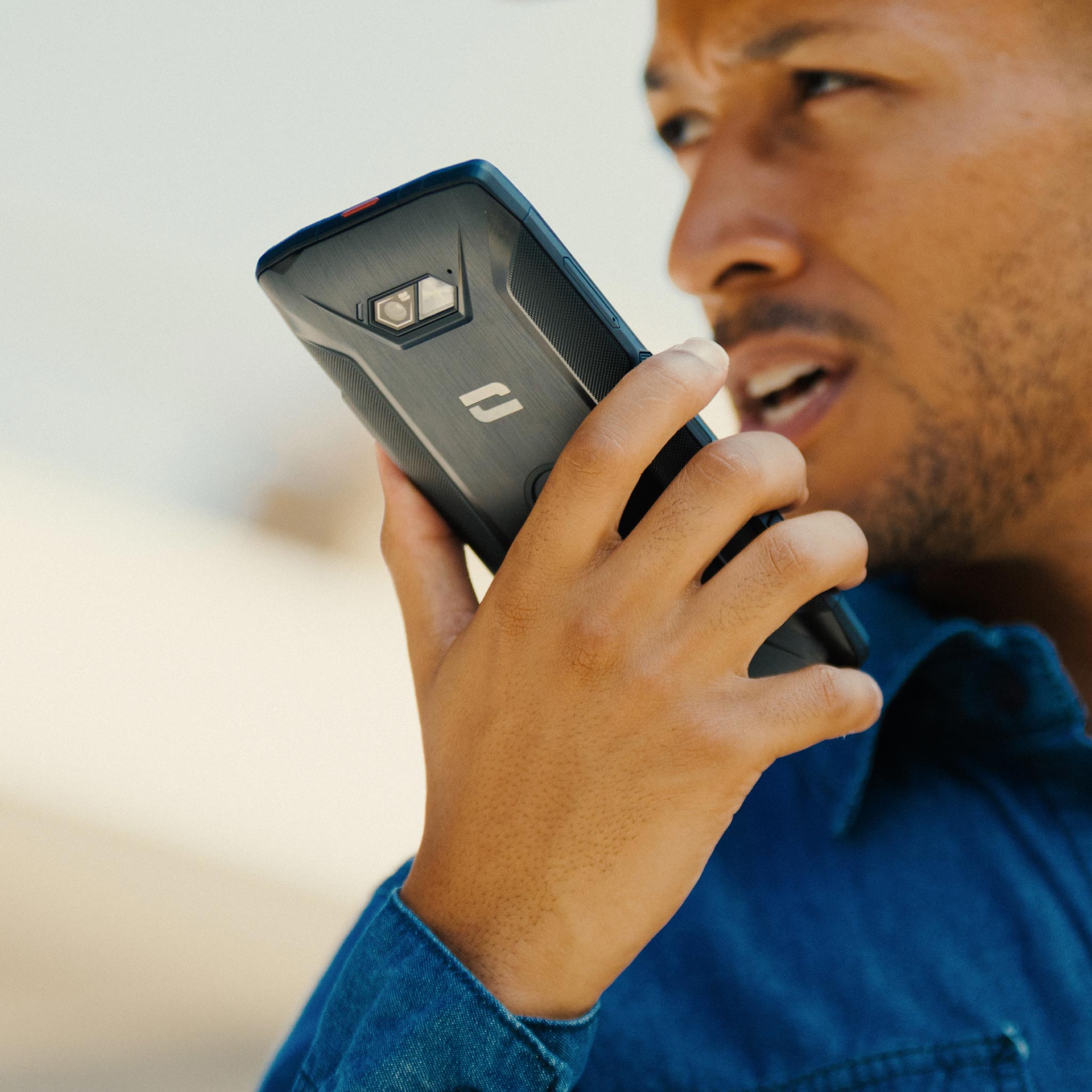

The walkie-talkie is a gadget that everyone loves. Used to coordinate teams in the field, it is also very handy for communicating with friends during a mountain biking or hiking trip. Now, thanks to Push To Talk (PTT) apps, you can turn any smartphone into a real walkie-talkie.
PUSH-TO-TALK APPLICATIONS, ALSO KNOWN AS PTT
The principle behind a Push-To-Talk app can be summed up in one phrase: Press and talk! As you can see, it works exactly like a walkie-talkie. In short, Push-To-Talk apps allow you to create discussion groups with which you can communicate verbally, instantly, at the touch of a button. Unlike traditional walkie-talkies, Push-To-Talk apps use 3G/4G/WiFi networks, which limits their use to areas with coverage but, on the other hand, gives them unlimited range.
X-TALK, THE FREE WALKIE-TALKIE APP DEVELOPED BY CROSSCALL
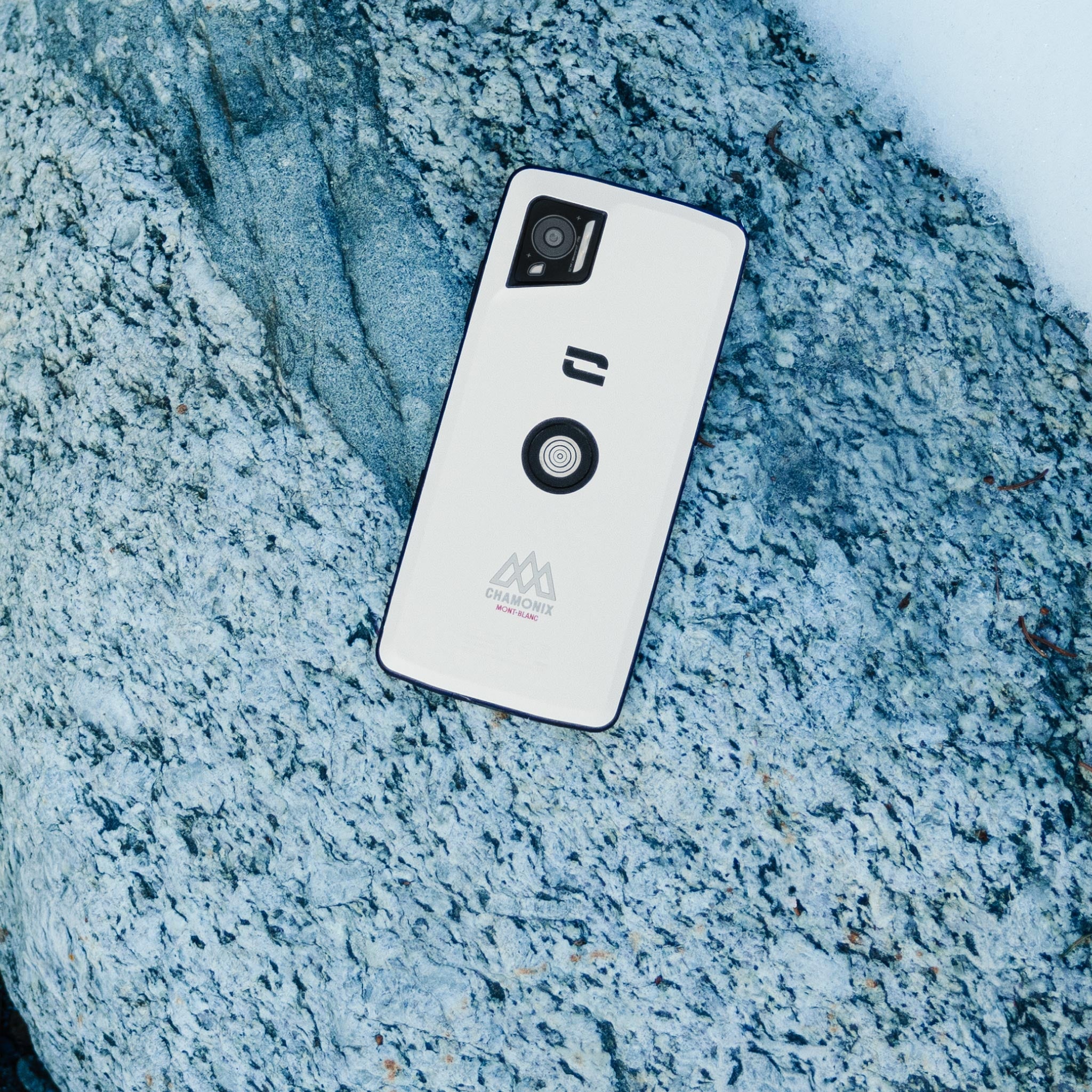
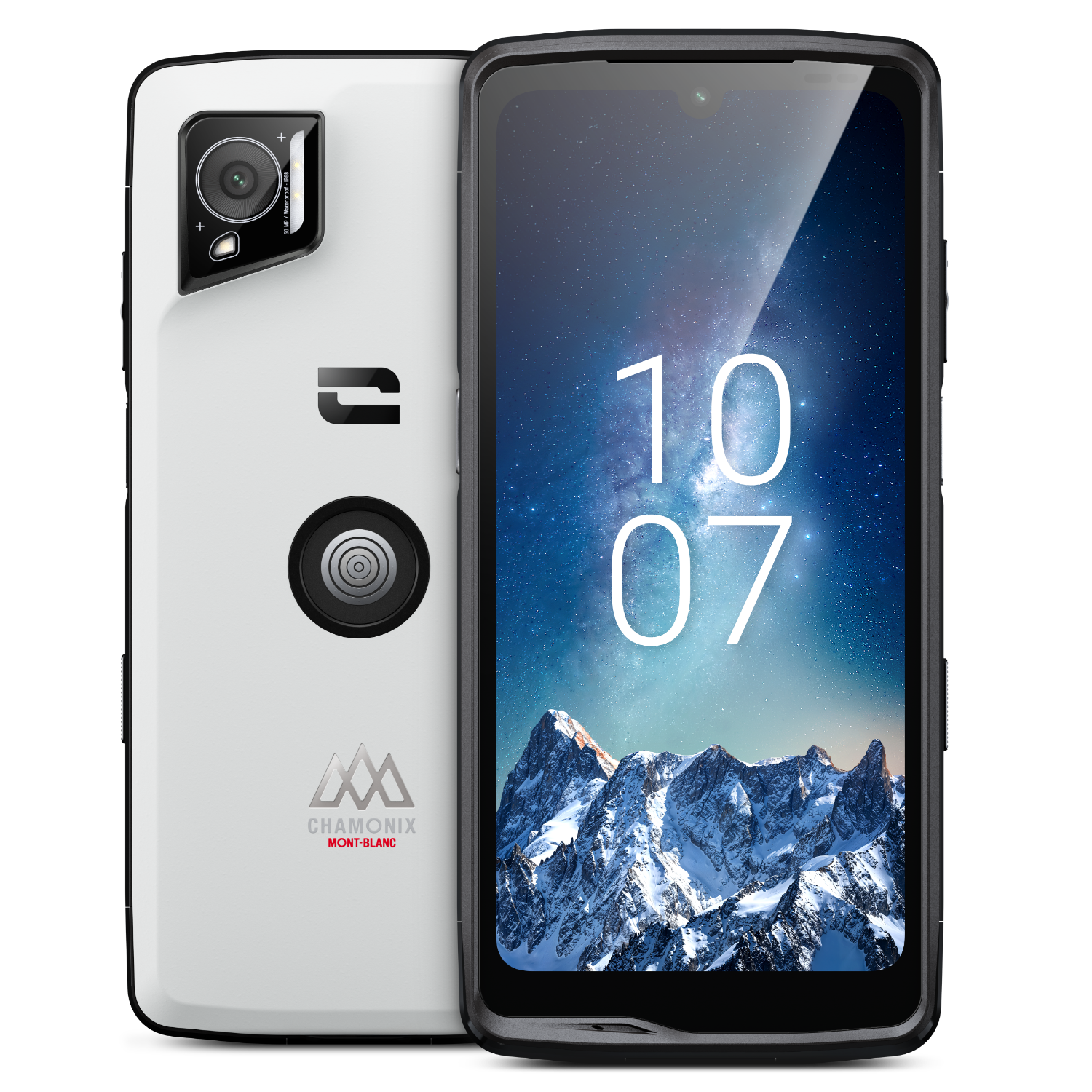
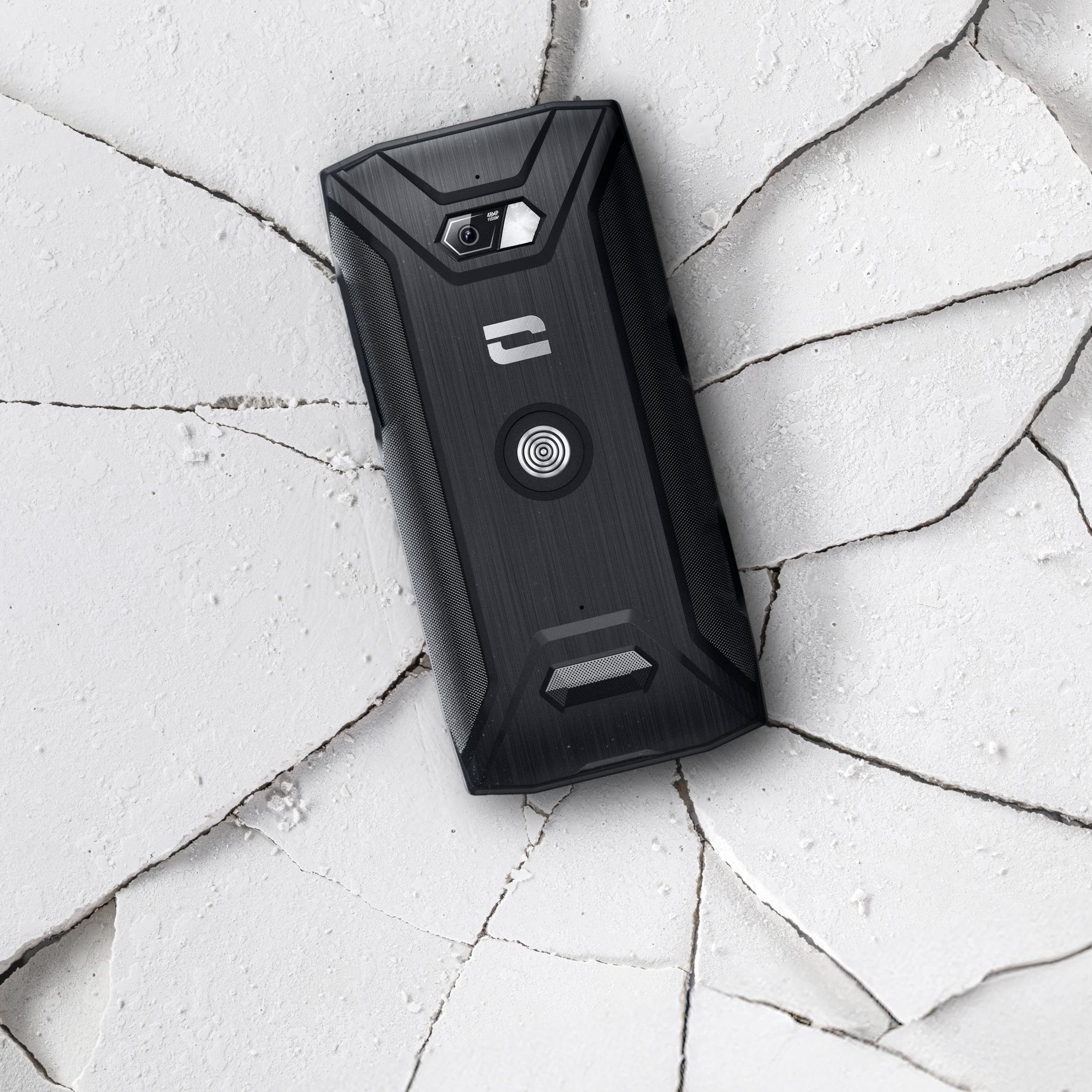
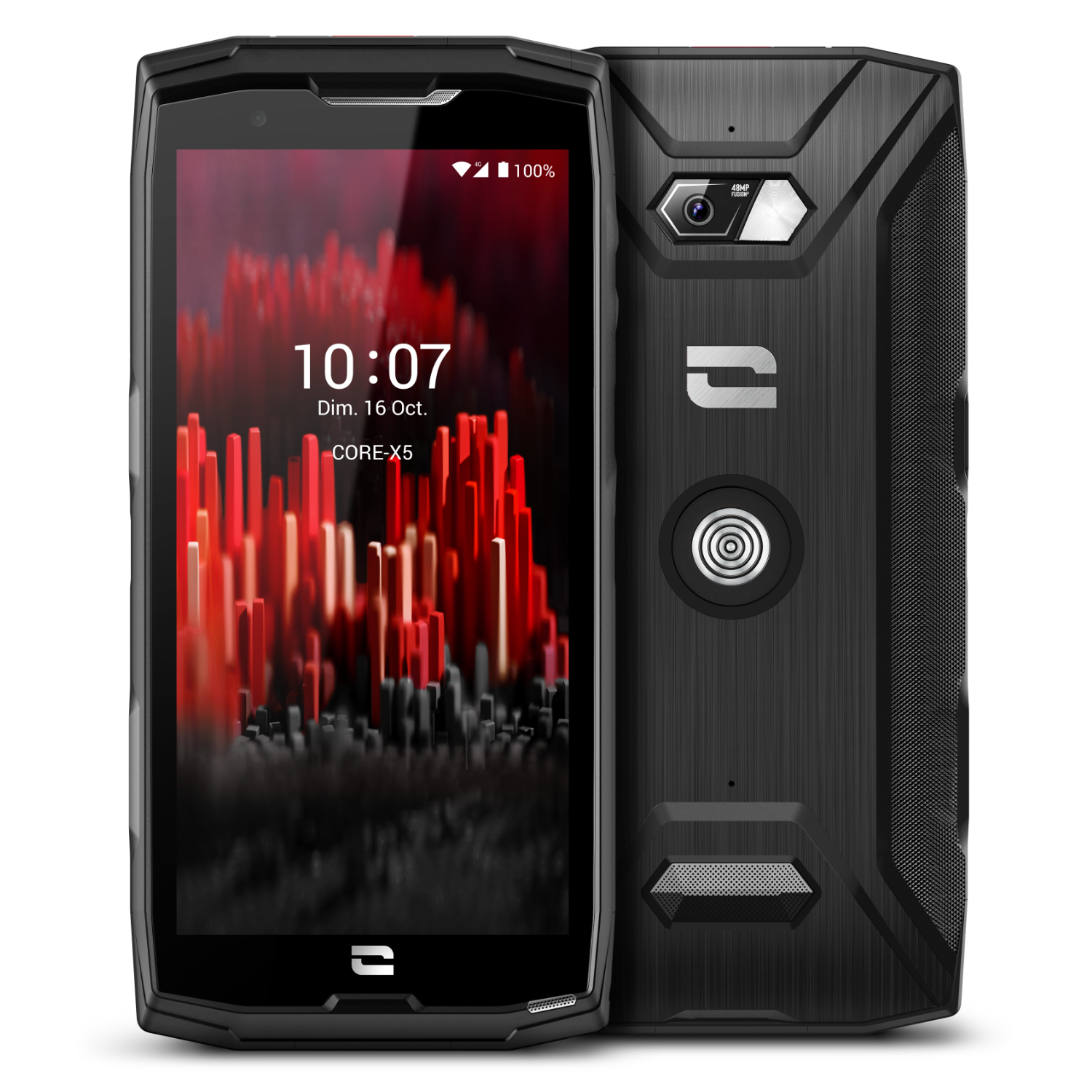
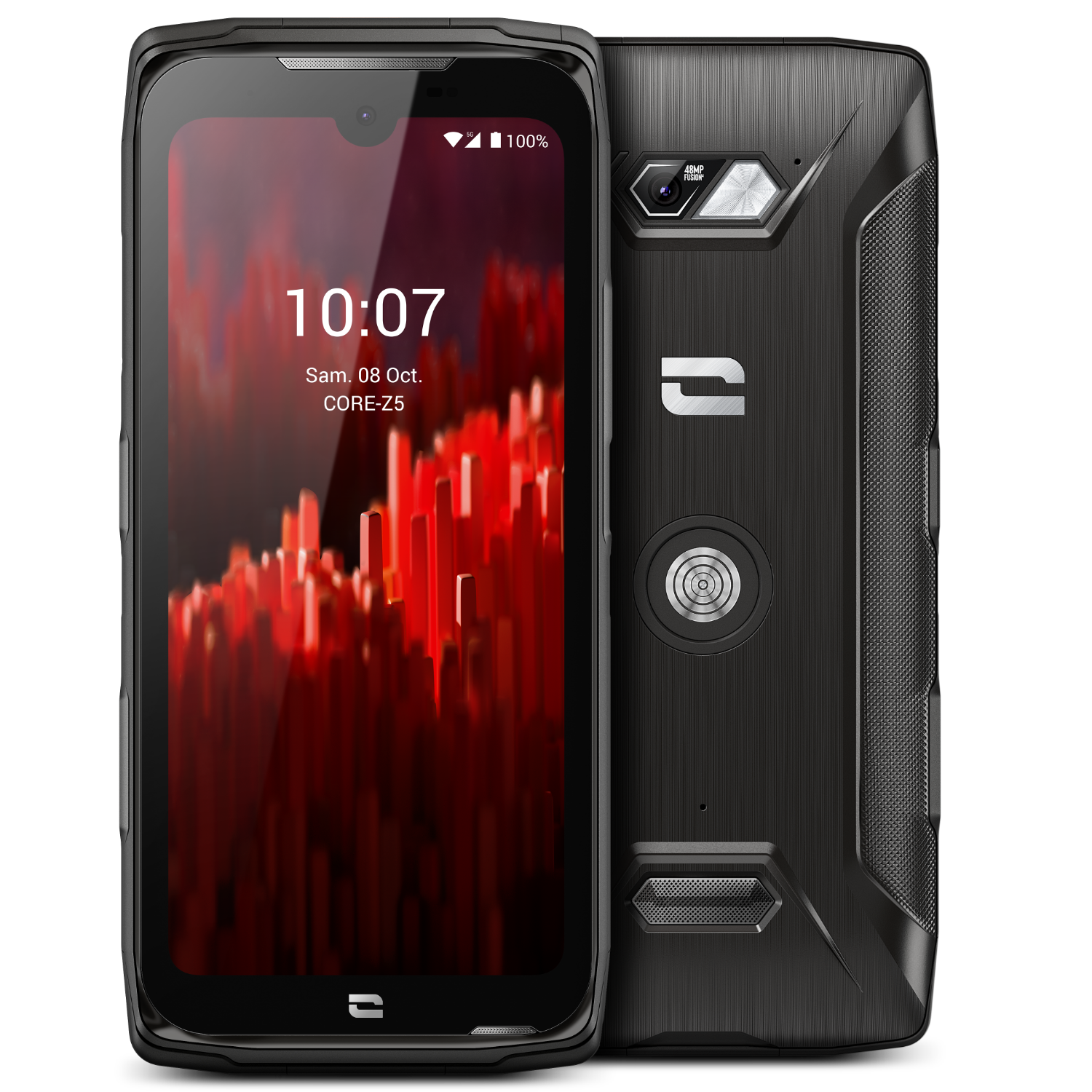
At CROSSCALL, we’ve developed our own walkie-talkie app: X-TALK. Available on all Android smartphones, this app CROSSCALL every CROSSCALL owner CROSSCALL a chat group and communicate instantly with group members. Once launched, X-TALK lets you follow a conversation or directions without having to pick up your phone. Talking is easy—just press a button and you’re on. The new CROSSCALL smartphones CROSSCALL also equipped with a dedicated button for this feature, ensuring quick and easy access. With X-TALK, you can also share your location with the entire group.
SET UP A PUSH-TO-TALK APP ON A PROGRAMMABLE BUTTON
If you own a CROSSCALL any other phone equipped with a programmable button, you can configure this button so that each time you press it, you’ll communicate directly via your Push-To-Talk app in the group of your choice.
To set up a Push-To-Talk app on a CROSSCALL smartphone CROSSCALL
- Go to Settings, then Buttons.
- Then, in Dedicated Button, click on the blue wheel next to Custom.
- Select the Push-To-Talk app and you're good to go!
To configure the button in the X-TALK application:
- Open theX-TALK app
- Click on the three dots in the top right corner.
- Then select "Configure PTT button."
- Follow the instructions