319,90€
Your cart is empty
Search on Crosscall
Search suggestion
We recommend
See all

Power Saving Mode: optimize your battery
In addition to offering mobile phones and smartphones with exceptional battery life, CROSSCALL, the leader in outdoor mobile technology, has found THE solution to extend your smartphone’s battery life: Power Saving Mode, a new feature available since the latest update on the TREKKER-X3. But what is it for? How does this mode work? You’ll find all the answers to your questions here. WHAT IS POWER SAVING MODE FOR? This new mode will allow you to maximize your battery life. You’ll minimize power consumption by using only the essential features of your TREKKER-X3. Whether you’re out for a day or several days, you’ll always stay connected by disabling the most power-hungry apps (social media, GPS tracking, etc.). HOW DO I ENABLE POWER SAVING MODE? There are two ways to access Power Saving Mode: Swipe down the taskbar and enable Power Saving Mode by tapping the icon. Go to "Settings" on your TREKKER-X3, then "Battery," and tap "Power Saving Mode" in the "three dots" menu in the top-right corner. To access this mode, you must install the latest update. Go to the Apps menu on your TREKKER-X3, tap the "Update" icon, and the download will start automatically. How does Power Saving Mode work? When activated, your screen will display in shades of gray and the brightness will be reduced by 50%. Your usual interface will then be replaced by a new, more streamlined one. Only 8 apps can be displayed on the home screen, 4 of which are customizable. You will only have access to basic apps: Phone SMS / MMS Internet. Here, your connection will switch from 4G+ to 2G, except when you open your browser, in which case connectivity will be 3G+. As soon as you open another app, the connection will switch back to 2G. SOS Feature You can add 4 apps (native or third-party) by clicking the “+” shortcut. Please note: you will not have access to the Play Store and therefore cannot add new apps. In the taskbar, only notifications will appear. All other icons will disappear. Your smartphone’s Settings will only be accessible via the “three dots” in the top-right corner and will also have restricted access here: Wi-Fi Bluetooth Various cellular networks (NFC, Bluetooth, etc.) and Airplane Mode Display Sounds and notifications Location Power Saving Mode will disable various connections—Bluetooth, NFC, Wi-Fi, and Geolocation—to minimize power consumption. However, you will still have access to your mobile data. To turn off the mode, tap the “three dots” in the top right corner and then select “Turn off Power Saving Mode.” How do I enable automatic activation of Power Saving Mode? Go to "Settings" then "Battery." Select "Power Saving Mode." In the "Auto-Activate" tab, you can then choose to enable the feature to activate based on different thresholds (between 5% and 35% remaining battery). When the phone reaches the selected threshold, it automatically switches to Power Saving Mode. How do I install the update on my TREKKER-X3? The update is currently being rolled out*. To install it, go to the Apps menu on your TREKKER-X3, tap the "Update" icon and the download will start automatically, or tap "INSTALL." This software update installs software version L1316.6.02.04.FR00 on your Trekker-X3 device. It improves system performance and stability and fixes bugs. New features have been added: Fixed display bug with Snapchat Improved flashlight functionality Improved network quality with Orange We recommend downloading this update via a Wi-Fi connection. If you download the update via a mobile network connection or while roaming, additional charges may apply. Your device will be unavailable during the update installation. Update size: 91.16 MB *If you are an SFR or Orange customer, the update is currently being validated and will be available soon.
Rugged phone for the mountains: the essential companion for outdoor adventurers
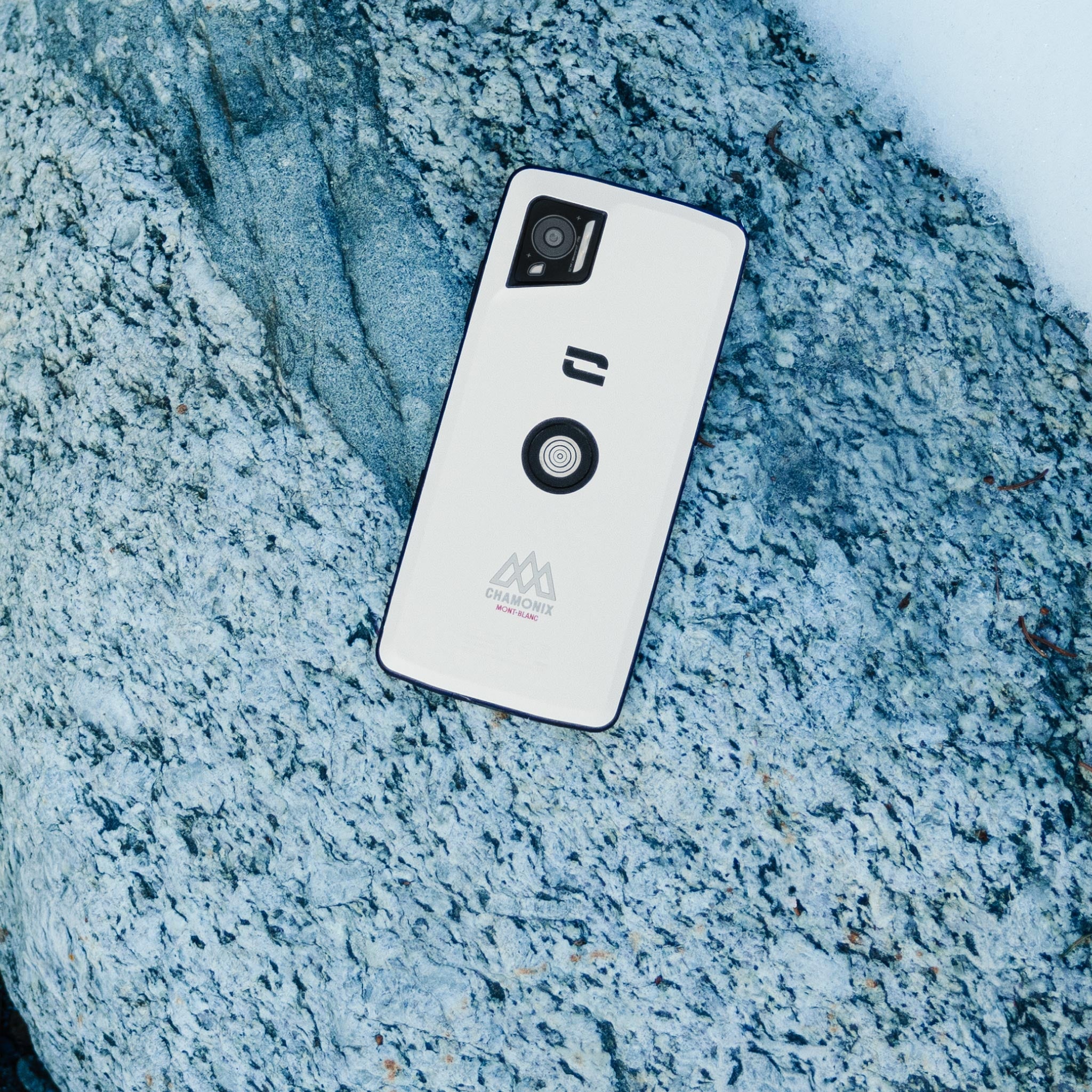
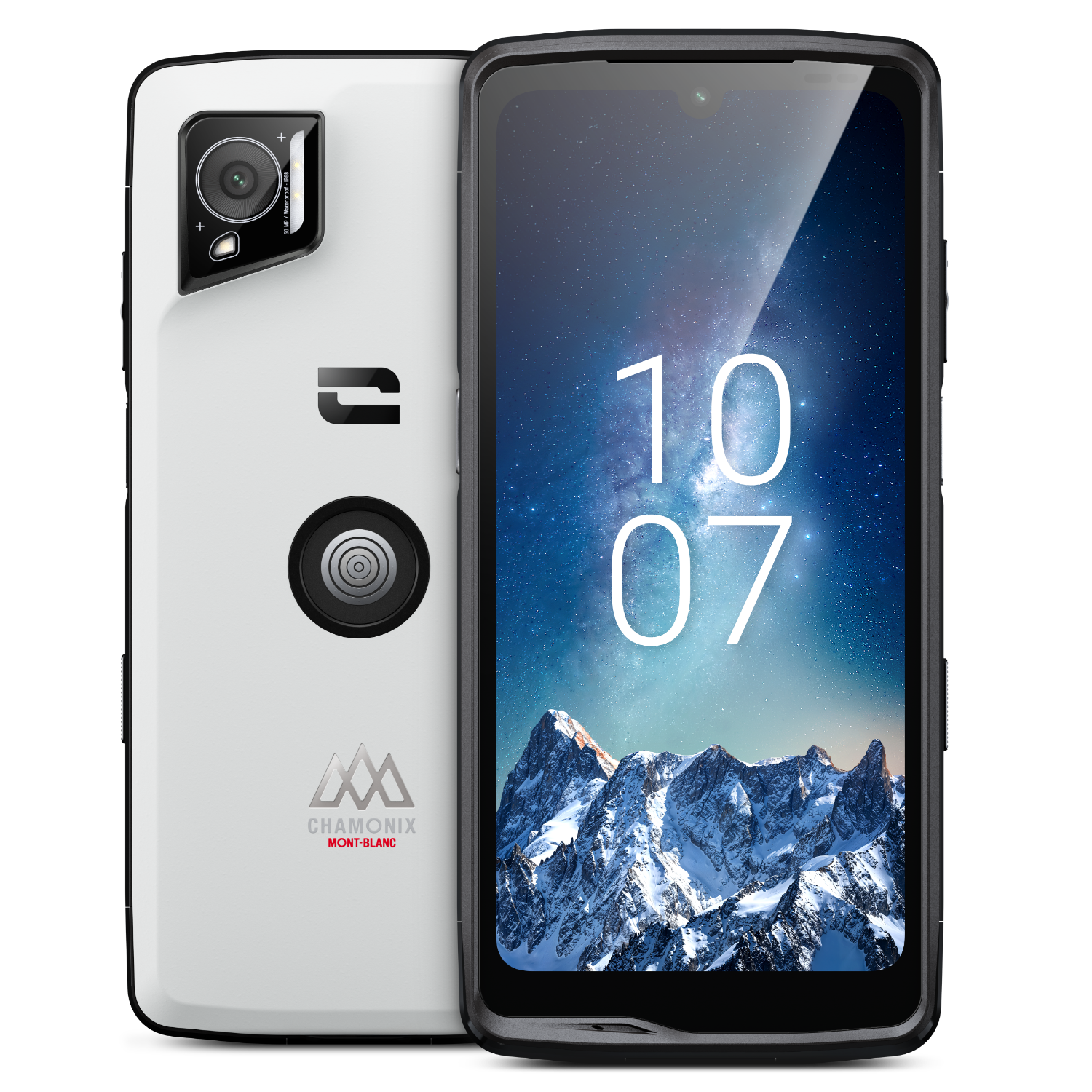
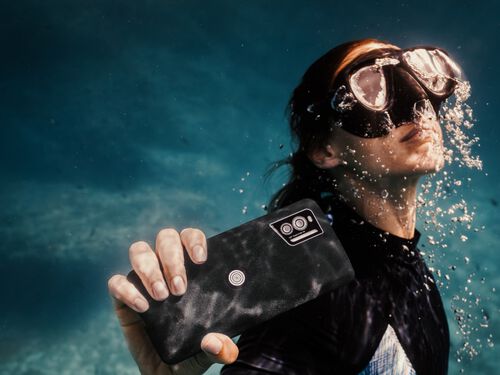
Why Choose a Rugged Phone for the Mountains? The mountains are a realm of adventure that is as fascinating as it is demanding. Between sudden weather changes, rugged terrain, and isolation, every high-altitude excursion carries risks. A rugged phone for the mountains isn’t just an accessory—it’s a vital safety tool. Whether you’re a casual hiker or a seasoned explorer, nature doesn’t cut you any slack. All it takes is one misstep, unpredictable weather, or a dead battery to turn a beautiful day into a real challenge. The right gear makes all the difference, and among the essentials, a reliable rugged smartphone is a must-have. Crosscall, a French brand of outdoor smartphones, offers two models tailored for adventurers: theSTELLAR-X5, ideal for hiking and photography, and theSTELLAR-M6, designed for explorers seeking rugged durability.

The Barcode Warehouse and Crosscall are partnering to provide British businesses and public sector organizations with rugged, mission-critical solutions designed for any environment. Crosscall designs and manufactures waterproof, rugged, and durable mobile phones and smartphones. Founded in 2009, the company quickly earned a reputation for creating devices capable of withstanding the harshest conditions. The range of rugged smartphones and tablets is specifically designed to withstand the rigors of hostile and unpredictable environments. From freezing temperatures to scorching heat, and everything in between—including dust, water, and drops—these devices are built to endure and keep working, thereby minimizing downtime and maximizing productivity. Crosscall has a strong presence in France and is expanding its reach to other European countries. Crosscall currently supplies over 300,000 devices to clients such as Leroy Merlin, Europe’s leading home improvement retailer; SNCF, the French national railway company; and the French National Police. By becoming a reseller, The Barcode Warehouse is expanding Crosscall’s reach to UK organizations that need mobile technology that is both rugged and durable. “After exploring Crosscall’s diverse range of products designed to support end-users in their work, we are excited about their potential in the UK market. At a time when smart devices are becoming increasingly powerful, adding Crosscall to our portfolio was an obvious decision.” William Bevis, Partner Development Lead & Technical Trainer, The Barcode Warehouse. This offering builds on The Barcode Warehouse’s 35 years of expertise as a solutions integrator specializing in barcode technology, RFID, labeling, and enterprise mobility solutions, combined with Crosscall’s rugged, state-of-the-art hardware, to equip businesses with the tools they need to streamline their operations and excel in demanding environments, from warehousing and manufacturing to field services and public safety. “Crosscall is delighted with this strategic partnership with The Barcode Warehouse, a major player in the enterprise mobility and managed services sector in the UK. By combining our solutions with their expertise and services, we offer an attractive proposition for organizations across various sectors. Drawing on our experience in other markets, we understand that customers are seeking greater value and durability for their mobile devices, and the UK and Ireland are no exception. Our 5-year warranty and range of enterprise accessories meet these customer demands, and we are delighted to introduce them to the UK and Ireland in collaboration with The Barcode Warehouse.” Denis Thayanithy, Director of International Trade at Crosscall. Crosscall is dedicated to promoting a more sustainable mobile phone industry. By partnering with suppliers to ensure ethical production practices and educating customers on responsible consumption, Crosscall aims to minimize the environmental impact of its products. By designing rugged, durable devices that are easy to repair and recycle, the company aims to reduce waste and extend the lifespan of its products. The company’s commitment to sustainability is also demonstrated by its trade-in programs, which refurbish end-of-life devices to extend their lifespan.
Crosscall wins French Tech 120 program for the fourth time
Once again this year, the French Tech Mission has selected Crosscall—for the fourth time in five years—for the annual French Tech 120 list. The Aix-en-Provence-based brand was chosen from among 120 French startups and scale-ups with the potential to become world-class technology leaders. The selection process was even more rigorous for this latest edition, based on economic performance criteria as well as a number of social and environmental commitments. Crosscall, the French manufacturer of ultra-rugged and durable smartphones and tablets, has established itself as a French technological leader by offering increasingly robust and sustainable solutions. Since its founding in 2009, the Aix-en-Provence-based scale-up has become a benchmark in enterprise telephony. The brand was recently selected by the specialty retailer Leroy Merlin to equip its 30,000 employees and continues its international expansion by positioning itself in markets related to critical communication, a strategic focus in Crosscall’s development. The selection criteria for this fifth cohort have evolved to place a central focus on commitments related to the ecological transition and gender equality. These are strategic priorities for Crosscall, which has been recognized with an EcoVadis Gold medal, placing it among the top 5% of companies with the best CSR performance. Among the company’s initiatives are its ability to extend the lifespan of its devices—which come with a 5-year warranty—as well as the new eco-design approaches developed with the STELLAR-X5, the French brand’s latest smartphone, which incorporates 26% recycled materials. On this occasion, Crosscall developed its first carbon footprint assessment, enabling it to measure the smartphone’s actual impact throughout its lifecycle and to further advance its eco-design approach in the future. Crosscall also stood out for its gender equality index: the score of 84/100 highlights the French company’s initiatives to ensure women’s representation in its leadership bodies and reduce the pay gap between women and men in similar positions. By joining the French Tech 120, Crosscall will benefit from close support from all relevant government agencies to continue its development and pursue its ambition to establish itself as a new leader in the global mobile phone market.

Class40 CrossCall World Championship crowned champion
One year after its launch, the Class40 Crosscall won the World Championships in its class this weekend in La Rochelle. This title confirms the full potential of this prototype, which combines innovation and sustainability, as well as that of its skipper, who has an unconventional background. After winning two world titles in freeride skiing, Aurélien Ducroz adds a new world title to his list of achievements, once again demonstrating his thirst for victory and his ability to lead ambitious projects. Aurelien Ducroz: “I’ve won two world titles in skiing; this is my first in sailing—it’s extraordinary! We sailed well during the first three days of the championship, with three strong races, always in the leading group. It came down to the maneuvers, and we were pretty good at that. We’re obviously frustrated that we couldn’t do more, but now we can only be happy with the result! Racing as a crew reminded me of the Tour de France à la Voile, which I did in a Diam24 for three years in a row… You get back into the swing of things, even if it’s a bit physically demanding on these boats, but it was a lot of fun. Working with Vincent Riou was just extraordinary. Sailing with someone who has so much experience is a real privilege and a true pleasure. I’d also like to thank him immensely, as well as everyone else who was on board: David Sineau, Eric Levet, Thomas Audren, and of course my boat captain Jonathan Chodkiewiez, with whom I’m very happy to have shared this moment. I’m incredibly proud to bring this World Champion title to this wonderful project that we’ve been building since last year with my partners on the Crosscall Sailing Team, led by Crosscall, who were the first to place their trust in me for the construction of our prototype.” CLASS40 WORLD CHAMPIONSHIP PODIUM 1. CROSSCALL 166) – Aurélien DUCROZ 2. INTER INVEST (175) – Matthieu PERRAUT 3. REDMAN (161) – Antoine CARPENTIER UPCOMING RACES July 17: Start of the Drheam Cup, a solo race, in Cherbourg. November 6: Start of the Route du Rhum to Guadeloupe.

Pour vous permettre de profiter pleinement des fonctionnalités de votre CROSSCALL, voici quelques astuces liées à l’utilisation d’Android. Les smartphones CROSSCALL évoluent sous le système d’exploitation Android, une plateforme qui représente 80% des terminaux présents sur le marché. Afin de vous offrir toujours plus de confort d’utilisation et de fluidité, ses fonctionnalités sont en perpétuelle évolution. C’est la raison pour laquelle nous avons souhaité vous proposer quelques conseils et astuces de manière à ce que vous puissiez profiter pleinement de votre Action Phone signé CROSSCALL. COMPTE GOOGLE [ASTUCE ANDROID – COMPTE GOOLE] Avant toute chose et si ce n’est pas déjà fait, créez-vous un compte Google. Android étant le système d’exploitation créé par Alphabet, vous pourrez ensuite profiter de toutes ses fonctionnalités : Gmail, Youtube, Google Drive, ou encore Google Calendar et Contact. Vos données seront automatiquement synchronisées entre vos différents appareils connectés. Pour créer un compte il suffit simplement de vous rendre sur le site de GOOGLE. Ps: Créez ce compte sérieusement et gardez de coté votre adresse et mot de passe. Si vous perdez votre téléphone, vous pourrez récupérer les contacts et même géolocaliser l’appareil directement via votre ordinateur. RÉGLER LA DATE ET L'HEURE [ASTUCE ANDROID – DATE ET HEURE] Vous voulez faire un petit voyage dans le temps ou simplement régler la date et l’heure de votre smartphone ? C’est très simple : 1. Ouvrez les paramètres de votre téléphone depuis le menu principal.2. Faites dérouler le menu jusqu’à l’onglet « Date / Heure » et cliquez dessus.3. Vous pouvez choisir le réglage manuel ou automatique de l’heure. Ps : Le réglage automatique fonctionne grâce au réseau internet. Si vous vous connectez sur un réseau Wi-Fi à l’étranger, l’heure devrait se mettre à jour automatiquement. CAPTURE D'ÉCRAN [ASTUCE ANDROID – CAPTURE D’ÉCRAN] Vous souhaitez conserver une trace d’une information sans avoir à la noter, ou tout simplement capturer le snapchat d’un ami ? La capture d’écran est la meilleure solution ! C’est très simple : 1. Appuyer simultanément sur le Bouton volume du bas et le bouton Power.2. Retrouver votre capture d’écran dans votre Galerie photos. Ps : N’oubliez pas que si vous faites le Screenshot du Snapchat d’un ami, il sera informé de votre action ! SUPPRIMER LE SON / LES VIBRATIONS DE VOTRE CLAVIER TACTILE [ASTUCE ANDROID – SON ET VIBRATION DU CLAVIER] Vous souhaitez supprimer le son et/ou les vibrations des touches de votre clavier ? C’est très simple : 1. Ouvrez les paramètres de votre téléphone depuis le menu principal.2. Faites dérouler le menu jusqu’à l’onglet « Sons et notifications » et cliquez dessus.3. Cliquez sur l’onglet « Autres sons ».4. Vous pouvez choisir d’activer ou désactiver le son et les vibrations de votre clavier tactile. INSTALLER UNE APPLICATION [ASTUCE ANDROID – INSTALLER/DÉSINSTALLER UNE APPLICATION] Le Play store vous permet d’accéder à plus d’un million d’applications que vous pouvez installer. Pour installer une application, c’est très simple : 1. Ouvrez le Playstore.2. Recherchez l’application souhaitée dans la barre de recherche.3. Cliquez sur l’icon de l’application que vous souhaitez télécharger.4. Cliquez sur le bouton « installer » pour une application gratuite ou sur « acheter » pour une application payante.5. L’installation commence. Une fois celle-ci terminée, un raccourci est créé dans le lanceur d’applications. Vous pouvez ensuite la déplacer sur votre page d’accueil (cf. comment déplacer une application). DÉSINSTALLER UNE APPLICATION [ASTUCE ANDROID – DÉSINSTALLER UNE APPLICATION] Les applications occupent beaucoup d’espace sur la mémoire de votre téléphone. Il faut donc faire un peu de ménage de temps à autres en supprimant les applications que l’on utilise plus. Pour désinstaller une application, c’est très simple : 1. Ouvrez le Playstore.2. Recherchez l’application souhaitée dans la barre de recherche.3. Cliquez sur l’icon de l’application que vous souhaitez désinstaller.4. Cliquez sur le bouton « Désinstaller ». Si vous avez acheté cette application, l’achat restera enregistré sur votre compte Google, vous permettant de la télécharger à nouveau et gratuitement. DÉPLACER UNE APPLICATION SUR L'ÉCRAN D'ACCUEIL [ASTUCE ANDROID – DÉPLACER UNE APPLICATION SUR L’ÉCRAN D’ACCUEIL] Android vous permet de déplacer les icônes de vos applications sur votre écran d’accueil de manière à y accéder plus rapidement. Comment faire ? C’est très simple : 1. Exercez une pression prolongée de votre doigt sur l’icône de l’application à déplacer jusqu’à ce que l’écran se dédouble.2. Sans relâcher la pression de votre doigt, faites glisser l’icône à l’endroit voulu.3. Vous pouvez relâcher votre doigt. CRÉER UN DOSSIER D'APPLICATIONS [ASTUCE ANDROID – CRÉER UN DOSSIER D’APPLICATIONS] Organiser vos applications dans un dossier vous permet de les trouver plus rapidement en permettant un accès direct depuis votre écran d’accueil. Pour créer un dossier, c’est très simple : 1. Exercez une pression prolongée de votre doigt sur l’icône de l’application à déplacer jusqu’à ce que l’écran se dédouble.2. Sans relâcher la pression de votre doigt, faites glisser l’icône au-dessus de celui d’une autre application. Un cercle blanc devrait apparaitre en dessous de votre doigt.3. Vous pouvez relâcher votre doigt. Les deux applications sont regroupées dans un même dossier. De la même manière, vous pourrez ajouter de nouvelles applications dans ce même dossier. ENLEVER UNE APPLICATION DE L'ÉCRAN D'ACCUEIL [ASTUCE ANDROID – ENLEVER UNE APPLICATION DE L’ÉCRAN D’ACCUEIL] Vous souhaitez supprimer une application de votre écran d’accueil, mais sans la désinstaller. C’est très simple : Exercez une pression prolongée de votre doigt sur l’icône de l’application que vous souhaitez supprimer de l’écran d’accueil. Faites la glisser jusqu’au bouton « supprimer » qui apparaît en haut à gauche de votre écran. Vous pouvez relâcher votre doigt. DÉSACTIVER LES NOTIFICATIONS D'UNE APPLICATION [ASTUCE ANDROID – DÉSACTIVER LES NOTIFICATIONS D’UNE APPLICATION (LOLIPOP 5.1.1)] Les notifications vous permettent d’être alertés mais peuvent être envahissantes, il peut donc parfois être utile de les désactiver. C’est très simple : 1. Ouvrez les « Paramètres » de votre téléphone depuis le menu principal.2. Ouvrez l’onglet « Sons et Notifications ».3. Ouvrez l’onglet « Notifications des applications ».4. Choisissez votre application.5. Vous pouvez choisir d’autoriser ou non l’application a générer différents types de notifications :– Aucune notification– Les afficher même lorsque le mode prioritaire est activé– Les afficher sur l’écran de verrouillageÀ noter que ces 2 derniers modes peuvent être complémentaires FERMER LES APPLICATIONS EN COURS DE FONCTIONNEMENT (GESTIONNAIRE DE TÂCHES) [ASTUCE ANDROID – GESTIONNAIRE DE TÂCHES] Quand vous retourner sur votre menu, les applications peuvent continuer de fonctionner en arrière plan. Cette activité prolongée peut réduire l’autonomie de votre batterie. Vous pouvez stopper l’activité d’une application grâce au gestionnaire de tâches. C’est très simple : 1. Touchez le bouton « carré » (Ou exercez deux pressions simultanées sur le bouton central si votre téléphone fonctionne sur une version d’Android antérieures à 5.1.1)2. Avec votre doigt, balayer vers la gauche ou vers la droite les applications dont vous souhaitez stopper l’activité UTILISER VOTRE TÉLÉPHONE COMME MODEM - PARTAGE DE CONNEXION [ASTUCE ANDROID – PARTAGE DE CONNEXION PAR CÂBLE, WIFI, BLUETOOTH] Vous êtes en déplacement et vous souhaitez vous connecter à Internet pour relever vos mails ou accéder à vos documents, votre smartphone a la capacité de partager sa connexion Internet avec un autre appareil comme un ordinateur par exemple. Pour profiter de cette fonctionnalité, vous devez disposer d’un abonnement adéquate (data) et d’un accès internet 3G/4G. Pour activer le partage, c’est très simple : WIFI / BLUETOOTH 1. Accédez aux « Paramètres » de votre téléphone depuis le menu principal.2. Sélectionnez la catégorie « Sans fil et réseaux ».3. Ouvrez l’onglet « Plus » puis « Partage connexion ».4. À la première utilisation, entrer dans « Paramètres du point d’accès WIFI »– Personnalisez le nom et le mot de passe de votre point d’accès– Retournez dans le menu « Partage de connexion »– Cochez la case de la ligne « Point d’accès Wi-Fi » ou Bluetooth en fonction de vos préférences. En recherchant un réseau wifi ou bluetooth depuis votre ordinateur ou tablette, vous verrez apparaitre le routeur de votre téléphone. Il suffira de s’y connecter grâce à votre mot de passe. USB 1. Connectez vos deux appareils grâce au port usb en OTG.2. Accédez aux « Paramètres » de votre smartphone en passant par le menu principal.3. Sélectionnez l’onglet « Plus » dans la catégorie « Sans fil et réseaux »4. Ouvrez l’onglet « Partage connexion »5. Activez la fonction « Via USB » LES WIDGETS[ASTUCE ANDROID – À QUOI SERVENT LES WIDGETS] Nombreux sont ceux qui se demandent à quoi servent les Widgets. En réalité, ils sont assez pratiques puisqu’ils permettent d’accéder à une application ou au contenu d’une application sans passer par celle-ci.Ils offrent alors différentes options de personnalisation pour vous offrir un aspect encore plus pratique et efficace directement depuis votre écran d’accueil.

Photos, videos, contacts: transfer all your data to your computer
There are a few simple ways to transfer all your personal data from your old device to your new CROSSCALL smartphone CROSSCALL music, videos, photos, ringtones, downloads, etc.). Follow the guide! VIA USB CABLE This is definitely the simplest method. Connect your device to your computer using your USB cable, X-DOCK your X-DOCK X-CABLE docking station X-CABLE your smartphone is equipped with X-LINK™ technology X-LINK™ Don’t forget to select the “Transfer files (MTP)” option from the list that appears. Transfer your data either to your computer or to your SD card, and retrieve it by following these simple steps: Retrieve the previously saved contact file (.vcf format), which should be located in the root directory of your phone. Back up the “DCIM,” “Pictures,” and “Video” folders for your photos, videos, and screenshots. If you own a TREKKER-X4, the file path will differ depending on whether you captured your videos using the Camera app or the X-CAM app X-CAM your Action Cam. Here it is: DCIM>Camera, for photos and videos captured with the Camera app. DCIM > Xcamera > Video > EXPORTED VIDEOS, for videos exported from the X-CAM app X-CAM your TREKKER-X4. 3. Copy your “Download” folder, which may contain downloaded and/or transferred files (always check). 4. Check the “media,” “Ringtones,” and “Sounds” folders to retrieve any music, audio recordings, and other ringtones you want to keep. If you’re transferring data from a Mac to your Android smartphone, you’ll need to download software like Android File Transfer. VIA THE CLOUD Install a cloud app on all your devices: your old and new smartphones, as well as your computer. The benefit of having your data synced in the cloud is that you can back it up across all your devices, regardless of their operating system. There are many solutions available, such as Dropbox, Microsoft OneDrive, Google Drive, etc. Apple’s iCloud can also be installed on a PC, but you’ll only be able to sync contacts, calendars, reminders, and emails. For everything else, you’ll need to download one or more specific apps from the Play Store, which may be free or paid. Upload your photos and videos to the app installed on one of your devices, and all the others will sync automatically! FOR PHOTOS & VIDEOS: GOOGLE PHOTOS This app is particularly easy to use. You can access all your photos and videos across all your devices, including your computer via the website. Download it from the Play Store if it isn’t already pre-installed on your phone. When you open the app for the first time, it will ask if you want to “back up and sync” your files. Tap “OK” and you’re all set. All your files are now backed up and synced across your devices.